Add Text to Images Online — 100% Free & Private

Select files

or drag and drop your images here

Overlay custom text, captions, and labels onto your photos instantly with our professional-grade, in-browser editor. Image Studio runs entirely in your local browser, meaning your images never touch a server—no uploads, no registration, and absolutely no usage limits. Enjoy a desktop-class design experience with 100% privacy and zero cost.

Features

Why Image Studio is Different

Absolute Local Privacy

Unlike other tools, your images are processed locally in your browser. They are never uploaded to our servers, keeping your sensitive photos and designs 100% secure.

Interactive Canvas Editing

Click, drag, stretch, and rotate your text directly on the image preview, or use pixel-perfect coordinate inputs for exact placement.

Advanced Styling & Clipping

Add solid or semi-transparent (RGBA) background blocks, custom drop shadows, and even clip your text to render only on non-transparent image pixels.

Unlimited Typography Freedom

Choose from a wide variety of built-in fonts, adjust line heights, toggle bold and italic styling, or import your own custom web fonts via TTF or WOFF URLs.

How-To

How to Add Text to an Image

  1. 01

    Load your image

    Drag and drop your file or select it from your device to load it instantly in the local workspace.

  2. 02

    Type and style your text

    Write your subtitles or labels, then customize the font size, alignment, color (Hex, RGB, or palette), and text box dimensions.

  3. 03

    Position and rotate

    Drag the text box on the canvas using your mouse, or fine-tune its position and angle using precise coordinate controls.

  4. 04

    Download your creation

    Export your finished image in high resolution immediately, processed entirely on your machine.

Use Cases

Use It for Anything

Social Media & Memes

Create attention-grabbing Instagram posts, YouTube thumbnails, or viral memes with custom impact fonts, text backgrounds, and styling.

Watermarks & Signatures

Secure your original photography, digital art, or screenshots by placing custom watermarks and copyright text anywhere on the canvas.

Product Mockups & Annotations

Add clear, precise technical notes, arrows, labels, or coordinate-based text blocks over product diagrams and screenshots.

Elevate Your Visual Content

Elevate your visual content with precise, private, and powerful typography tools. Start overlaying custom text on your images today with Image Studio—no signup, no fees, just pure utility.
FAQ

Frequently Asked Questions

Is my image safe? Does Image Studio save my files?
Your images never leave your computer. Image Studio uses advanced in-browser technology to process all text overlays and image rendering locally on your device, ensuring complete privacy.
Can I use my own custom fonts?
Yes. In addition to our extensive built-in library (including Arial, Helvetica, Roboto, Monospace, and Serif options), you can import custom fonts by pasting a URL to any TTF or WOFF file.
Can I add background colors or shadows to my text?
Absolutely. You can add rectangular background blocks to your text with support for solid and semi-transparent (RGBA) colors, and apply drop shadows with custom X/Y offsets, blur radiuses, and shadow colors.
What is the "clip to non-transparent pixels" feature?
This advanced feature restricts your text rendering so that it only draws on top of the non-transparent pixels of your underlying image. It is perfect for creating unique masking effects, text silhouettes, and artistic typography overlays.

How to Add Customizable Text and Labels to Images

Enhance your graphics with completely customizable subtitles, overlays, and labels right inside your browser. This tool lets you control typography, add drop shadows, apply background backdrops, rotate text boxes, and even clip text dynamically to opaque pixels.

1Launch the Add Text Tool

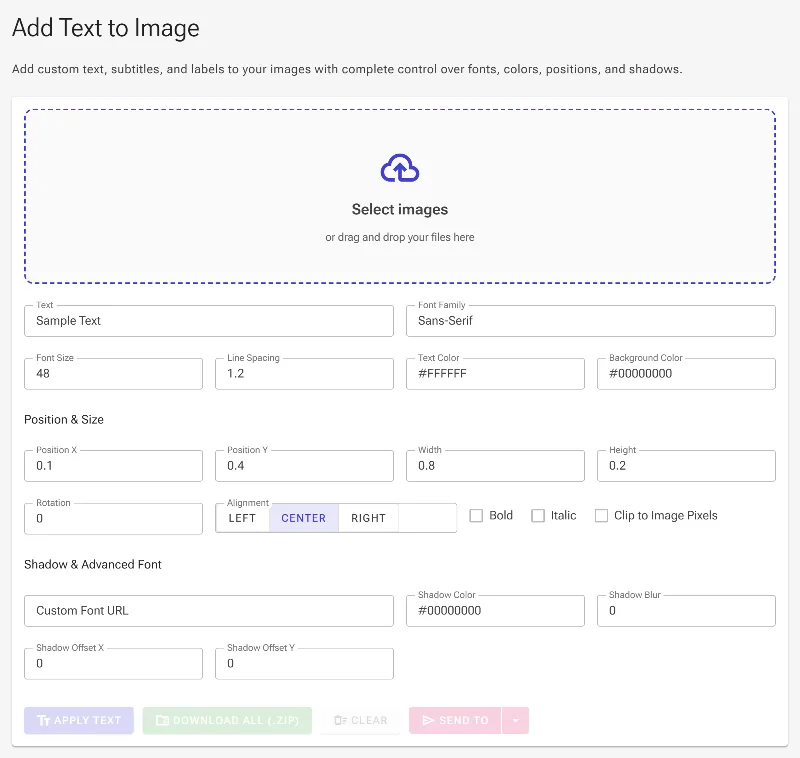
Open the Add Text workspace in your browser. This offline-first tool processes everything directly on your device, ensuring maximum privacy since your high-resolution images never leave your computer.

Launch the Add Text Tool
The initial empty workspace of the Add Text tool

2Upload Your Target Image

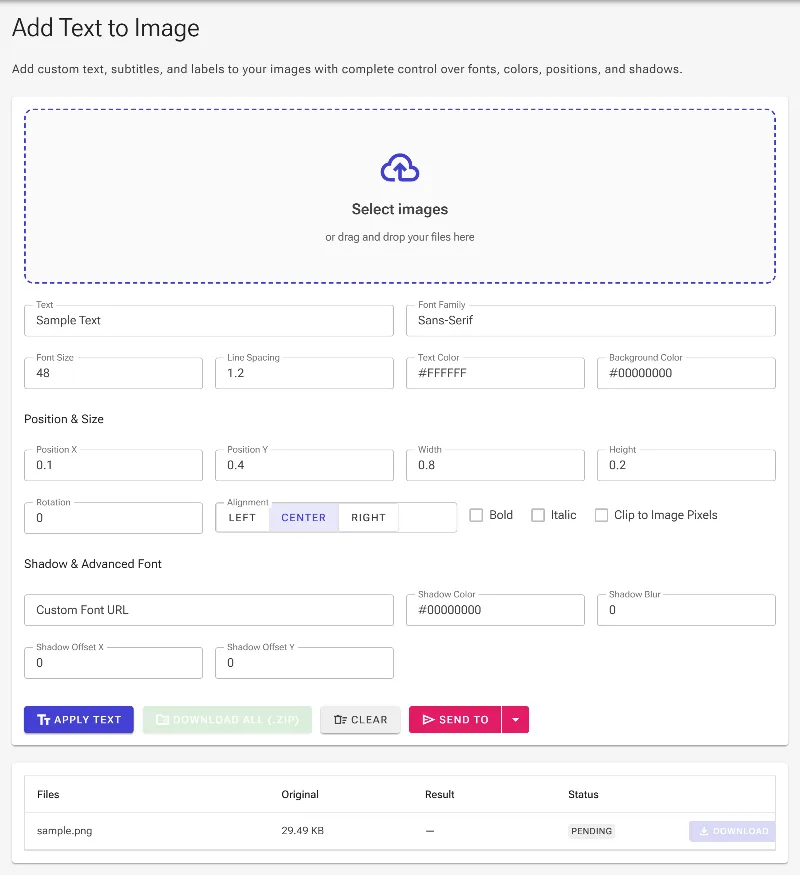
Select or drag your image into the main file area. Once loaded, the tool prepares the preview and activates the styling panel, allowing you to visually position and customize your overlays.

Upload Your Target Image
Your chosen image loaded and ready for text customization

3Set Text and Color Styling

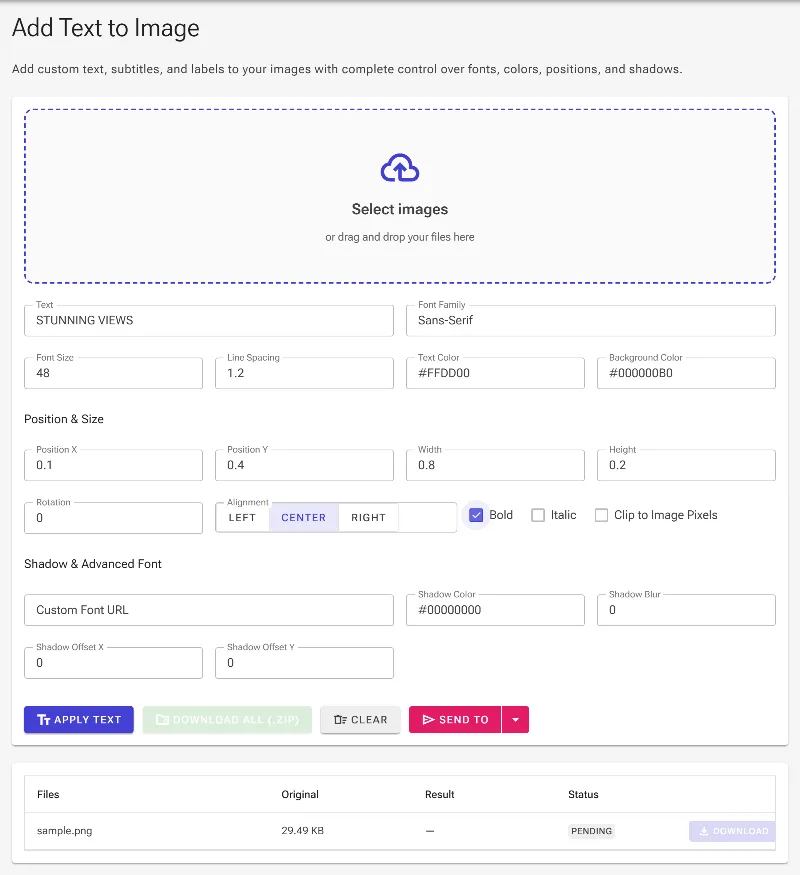
Enter your custom text and specify the font family (such as Monospace, Serif, or Arial). You can customize the text color using Hex codes, RGB, or standard color names, and add a semi-transparent background box using 8-character Hex codes (like #000000B0) or RGBA to ensure legibility on busy images.

Set Text and Color Styling
Entering custom text, changing the text color, and applying a semi-transparent background

4Apply Changes and Download

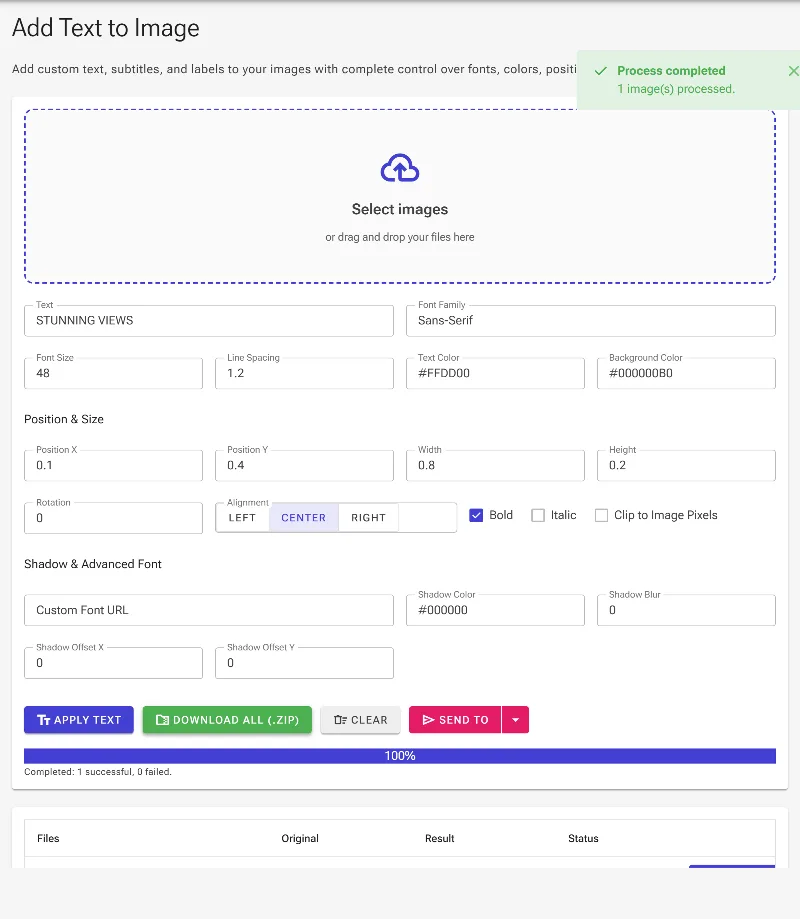
Click the Apply Text button to render your styled text directly into the high-resolution bitmap. Once the batch processing is complete, you can download your newly annotated image or pack everything into a convenient ZIP archive.

Apply Changes and Download
Rendering the text overlay and downloading the finished graphic