Blur Faces in Images Online Instantly and Privately
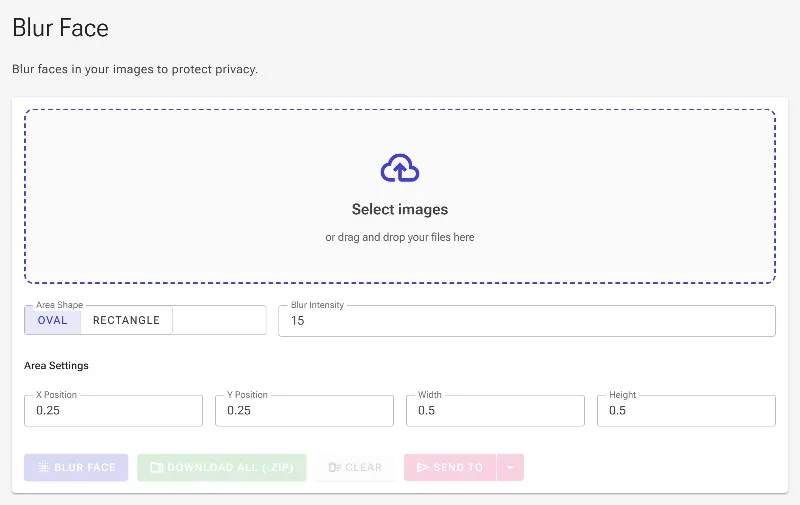
or drag and drop your images here
Protect personal privacy and bypass invasive facial recognition tracking with the ultimate free face-blurring tool. Image Studio runs entirely in your local browser, meaning your photos are never uploaded to any server, keeping your personal data 100% secure. Easily censor sensitive details in seconds with absolutely no sign-ups or daily limits.
Why it's different
100% Local Offline Processing
Your images never leave your device. All processing is executed locally in your browser to guarantee absolute privacy and security.
Oval & Rectangular Blur Shapes
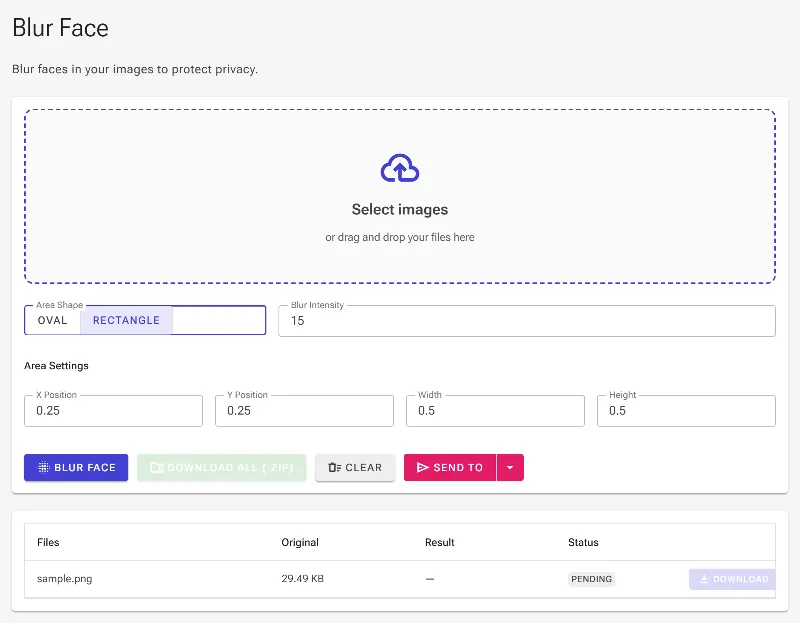
Choose between natural oval shapes for faces or precise rectangular boxes for license plates, text, and sensitive documents.
Granular Positioning & Sizing
Adjust your blur area dynamically using interactive drag-and-resize handles, or manually input exact X/Y coordinates and dimensions for pixel-perfect placement.
Adjustable Blur Intensity
Control the exact strength of the blur to ensure complete anonymity, entirely free of charge and without watermarks.
How to Blur a Face in an Image
Load your photo
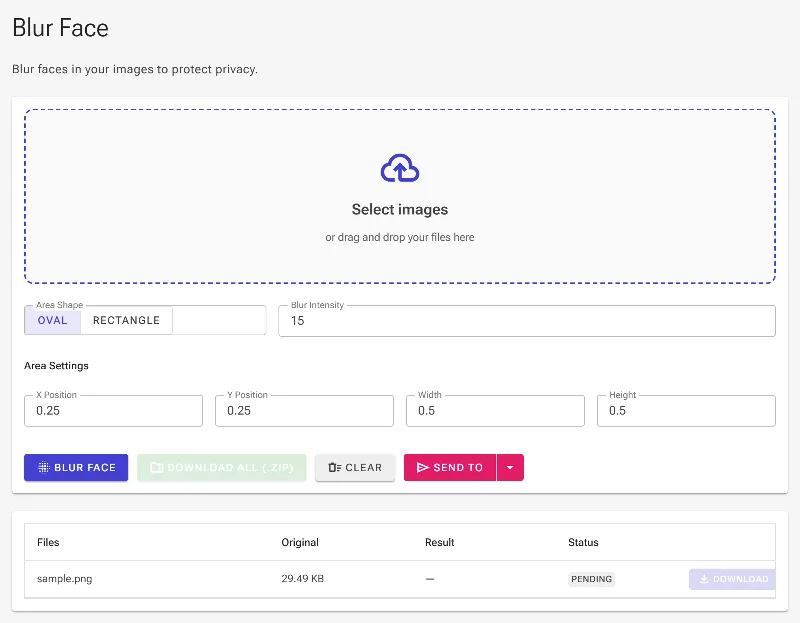
Drag and drop your image or click to browse. It loads instantly on your device without uploading to external servers.
Select your blur shape
Choose between an oval or rectangular shape depending on whether you are censoring a face or text.
Fine-tune the size and position
Drag the interactive handles over the face, or use the precise coordinate and dimension inputs to position it perfectly.
Adjust intensity and download
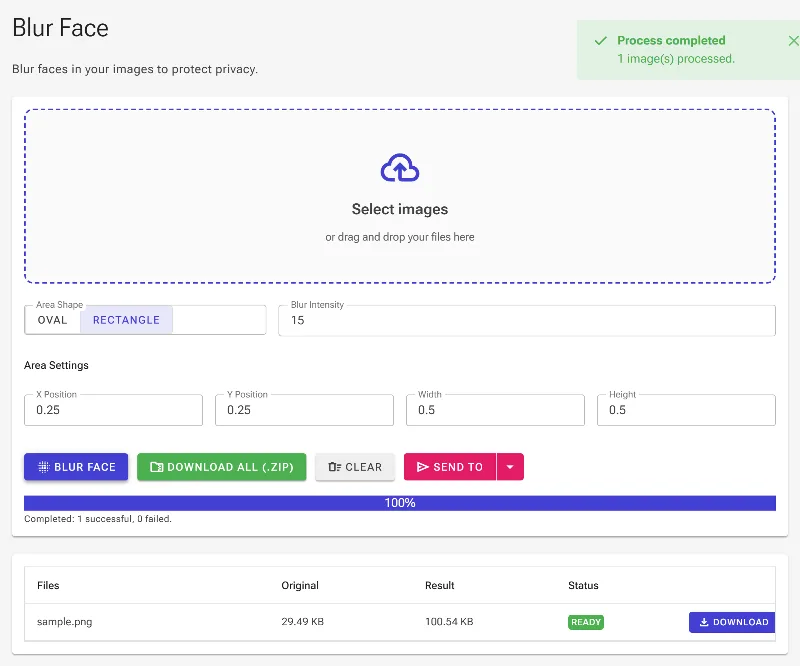
Slide the blur strength setting to your desired level, then click to save your secure image instantly.
Use it for anything
Social Media Privacy
Censor children's faces, bystanders, or crowds before posting photos online to protect personal identities.
Securing Professional Documents
Redact sensitive information, ID badges, signatures, or license plates on official screenshots and work images.
Journalism & Activism
Mask the identities of sources, protesters, or vulnerable individuals quickly and securely while in the field.
Take control of your digital footprint
Take control of your digital footprint with a tool designed to respect your right to privacy. Start blurring faces securely right now—no registration required.
Frequently Asked Questions
Is my uploaded photo safe?
Yes, entirely safe. Image Studio runs locally in your web browser. Your photos are processed directly on your computer and are never sent to our servers, making it impossible for anyone else to access them.
Can I choose different blur shapes and strengths?
Yes. You can toggle between oval and rectangular blur masks to fit faces or text boxes, and adjust the blur intensity slider to ensure the covered area is completely unrecognizable.
Are there any daily usage limits or watermarks?
No. Our face-blurring tool is 100% free, does not add watermarks, requires no account sign-up, and has no rate limits. You can edit as many images as you need.
Can I adjust the blur area with pixel-perfect accuracy?
Yes. You can resize the blur area interactively using drag handles, or manually input exact X/Y coordinates, width, and height for precise control.