Convert Landscape to Portrait: Change Horizontal Images to Vertical Online
or drag and drop your images here
Transform your landscape photos into vertical masterpieces perfect for mobile screens and social media instantly. Image Studio runs entirely inside your web browser, meaning your images are processed locally and never uploaded to any server. Enjoy a completely free, private, and unlimited solution to resize and expand your images without losing quality.
Why it's different
100% Secure & Local Processing
Your photos never leave your device. All calculations occur right in your browser, keeping your personal data completely private and secure.
Advanced Vertical Expansion
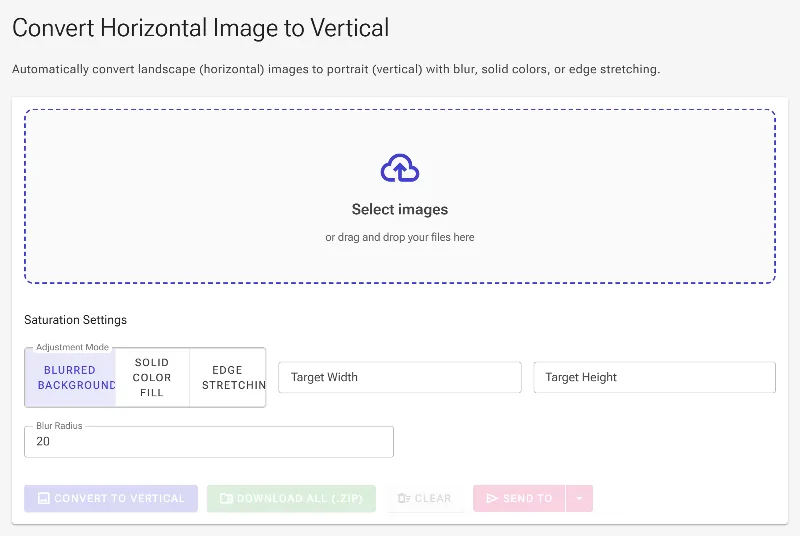
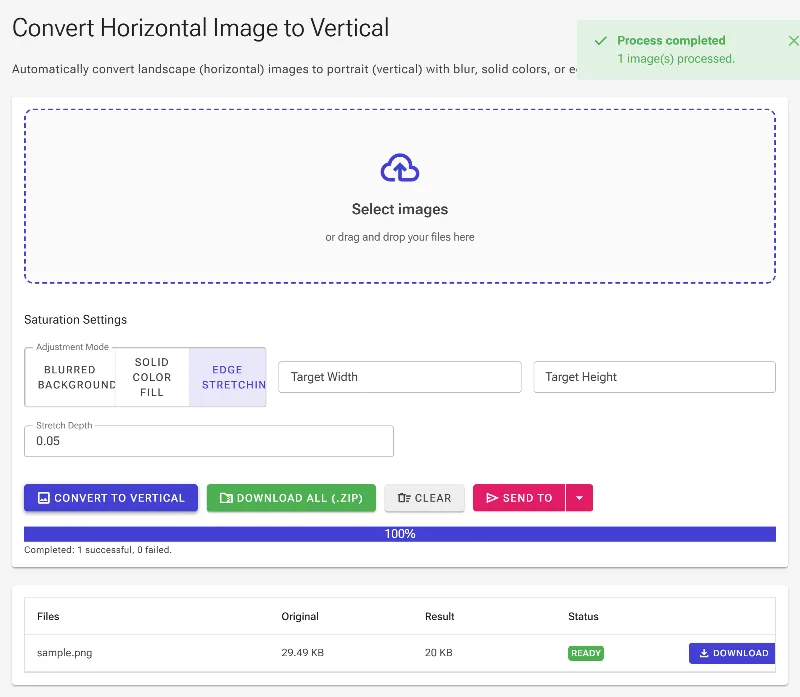
Don't just crop your photo; extend it. Choose between smart blur padding, independent top and bottom solid colors, or seamless edge stretching to fill the vertical canvas.
Flexible Dimension Control
Instantly swap your width and height dimensions, or manually input your custom parameters for a perfectly tailored portrait layout.
No Limits, No Watermarks
Get premium-grade image conversion with zero registration, no annoying daily limits, and absolutely no watermarked downloads.
How to convert landscape to portrait
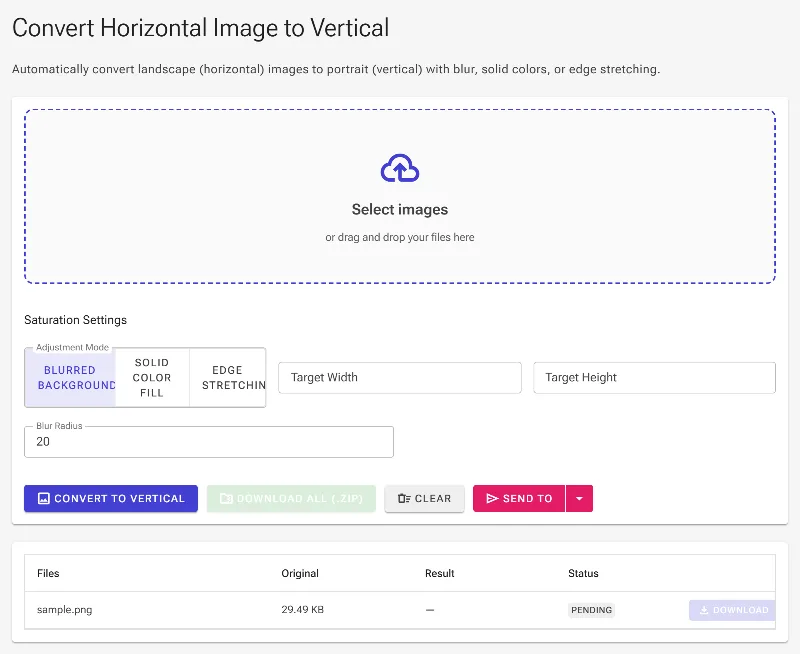
- Load your image: Drag and drop your horizontal photo or click to select one from your device.
- Choose your canvas size: Swap the width and height automatically, or enter your exact target dimensions manually.
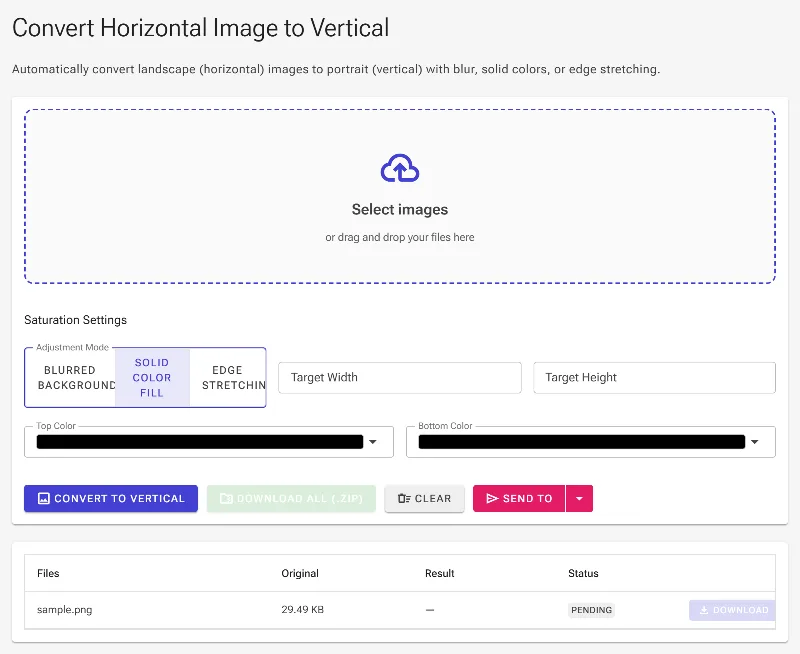
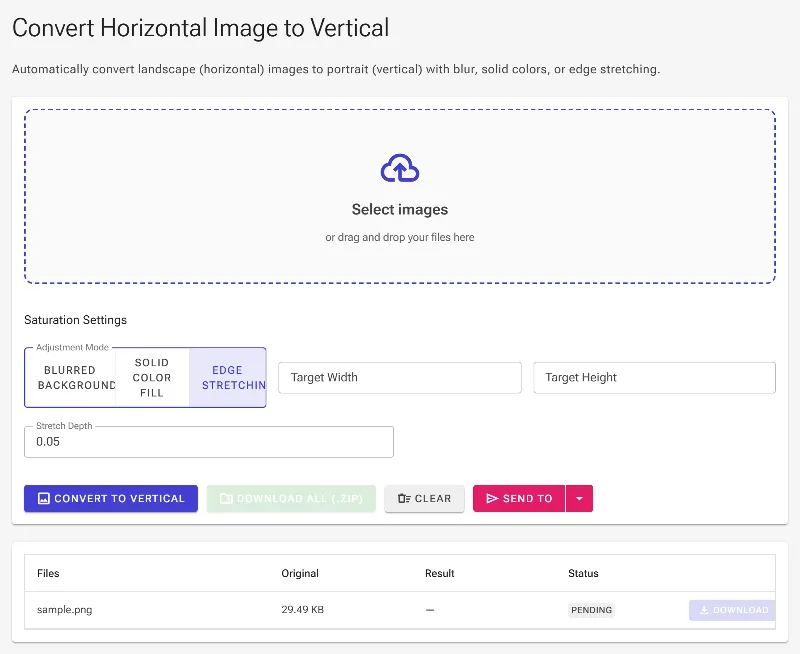
- Select your background style: Fill the vertical space by adding adjustable blurred borders, selecting independent solid colors for the top and bottom panels, or stretching the outer edges.
- Download your vertical photo: Preview your edit in real-time and export your high-resolution portrait image instantly.
Use it for anything
Social Media Stories & Reels
Turn horizontal DSLR shots into vertical layouts optimized for Instagram, TikTok, YouTube Shorts, and Pinterest.
Custom Mobile Wallpapers
Adapt your favorite landscape photography into perfectly proportioned vertical wallpapers for your smartphone screen.
E-commerce & Web Design
Convert horizontal product displays to fit vertical banners, mobile layouts, and ad templates without cropping out crucial details.
Adapt Your Visuals Instantly
Ready to adapt your visual content for a mobile-first world? Experience fast, secure, and professional-grade landscape-to-portrait conversion with Image Studio today.
Frequently Asked Questions
How can I change a horizontal photo to vertical without cropping?
You can expand the canvas vertically using our intelligent filling tools. Instead of cropping your main subject, fill the newly created top and bottom spaces using a custom-intensity blur, solid color fills (customized independently for top and bottom), or by stretching the outermost edge pixels for a seamless blend.
Is this landscape-to-portrait converter safe for private photos?
Absolutely. Unlike online converters that upload your files to cloud servers, Image Studio processes everything locally within your browser. Your images never leave your computer, ensuring complete privacy and data security.
What are the dimensions of a standard vertical image?
Standard vertical (portrait) aspect ratios include 9:16 (commonly 1080x1920 pixels for stories and phones) and 4:5 (often used for social feeds). Our tool allows you to automatically swap your original horizontal dimensions or manually type in any specific pixel width and height you need.
Can I adjust how the expanded vertical borders look?
Yes! You have complete creative control. You can adjust the Blur Radius to make the background margins as soft or sharp as you want, define separate solid colors for the top and bottom sections, or modify the Stretch Depth to control how much of the original image's edges are extended.