Change Image Orientation Instantly: Portrait to Landscape & Back

Select files

or drag and drop your images here

Easily change any photo's orientation from portrait to landscape, landscape to portrait, or to a custom size without cropping your main subject. Running entirely in your web browser, Image Studio processes your images locally—meaning your files never touch a server, ensuring 100% privacy, speed, and zero limits. Best of all, it is completely free and requires no sign-up.

Features

Why It's Different

100% Private & Local Processing

Your images never leave your device. Everything runs client-side in your web browser, keeping your sensitive visual data completely secure.

Smart Border Extension Options

Instead of harshly cropping your subject, seamlessly expand your canvas using an adjustable Blur Effect, custom solid color fills, or advanced edge-pixel stretching.

Instant Presets & Custom Sizes

Swap orientations automatically upon uploading, toggle between standard landscape and portrait layouts, or enter precise custom dimensions manually.

Completely Free with Zero Limits

No subscriptions, no registration, no watermarks, and no daily upload limits. Edit as many high-resolution photos as you need, whenever you need.

Guide

How to Change Image Orientation

1

Upload your image

Drag and drop or select your photo from your device to automatically load it into the tool.

2

Select your orientation

Choose portrait, landscape, automatic reversal, or input your own custom width and height.

3

Style the background margins

Fill the newly extended canvas space using a customizable blur radius, custom solid colors, or stretched edge pixels.

4

Download instantly

Save your perfectly reformatted image directly to your device in high resolution with zero quality loss.

Use Cases

Use It for Anything

Social Media Formatting

Convert landscape camera shots into vertical, portrait-oriented layouts optimized for Instagram Stories, TikTok, or Pinterest without losing key visual details.

Desktop & Mobile Wallpapers

Convert vertical smartphone photos into widescreen landscape wallpapers for your PC, or transform horizontal scenic pictures into lock screens.

E-commerce & Web Design

Standardize product images to fit specific banner or grid aspect ratios, using professional border fills to maintain a clean, consistent aesthetic.

Adjust Your Images Instantly

Ready to adjust your images to the perfect layout? Experience lightning-fast, secure, and professional-grade orientation changes with Image Studio today—completely free and right in your browser.
FAQ

Frequently Asked Questions

How do I change a vertical photo to horizontal without cropping the subject?
Image Studio lets you expand your canvas from portrait to landscape without cutting out any of your original image. You can choose to fill the newly created side space with an elegant blur effect, customizable solid colors, or a continuous edge-pixel stretch.
Does Image Studio upload my photos to an external server?
No. Unlike other online image editors, Image Studio operates entirely locally within your browser. Your images are processed directly on your computer, meaning your private photos are never uploaded, stored, or visible to anyone else.
What background styling options are available for the extended margins?
We offer three powerful styling options: a configurable Blur Effect to blend margins smoothly, Color Fill allowing you to set distinct colors for the opposing sides, and Stretched Edges which stretches the outermost pixels of your image to create a seamless extension.
Are there any file size or daily usage limits?
Not at all. Because all processing happens locally on your own hardware, there are no bandwidth costs. You can change the orientation of unlimited images, of any file size, completely free of charge and without ever needing to sign up.

How to Change Image Orientation, Step by Step

This offline browser tool allows you to easily transform your vertical images to horizontal (and vice-versa) or define a completely custom dimension. Frame empty borders cleanly using professional blur fills, custom solid gradients, or edge-pixel stretching directly inside your browser.

1Open the Orientation Tool

Start by opening the Change Image Orientation tool. The entire process runs locally in your web browser, keeping your private image files secure. This utility handles orientation swaps efficiently by automatically calculating target dimensions and preparing fill areas.

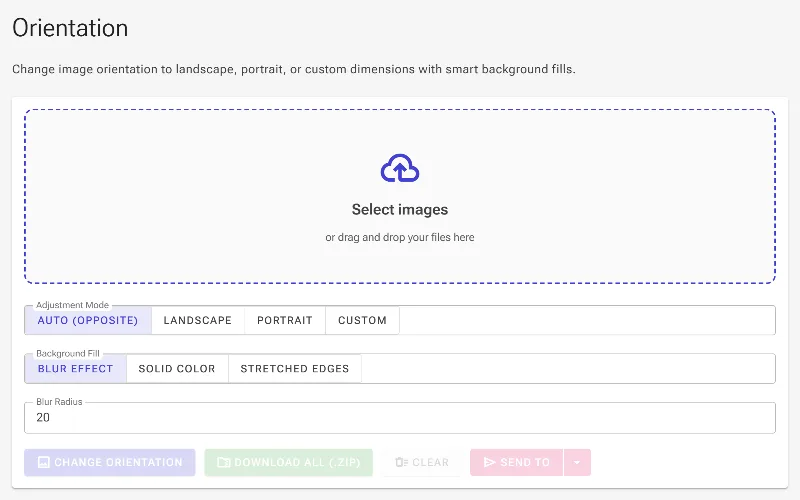
Open the Orientation Tool
The layout of the orientation-changing tool before files are uploaded.

2Upload your source images

Click on the file selection area or drag and drop your photos into the tool. Upon loading, the application default mode is set to Auto Opposite, which automatically reverses the width and height of any image to switch landscape formats into portrait and portrait formats into landscape.

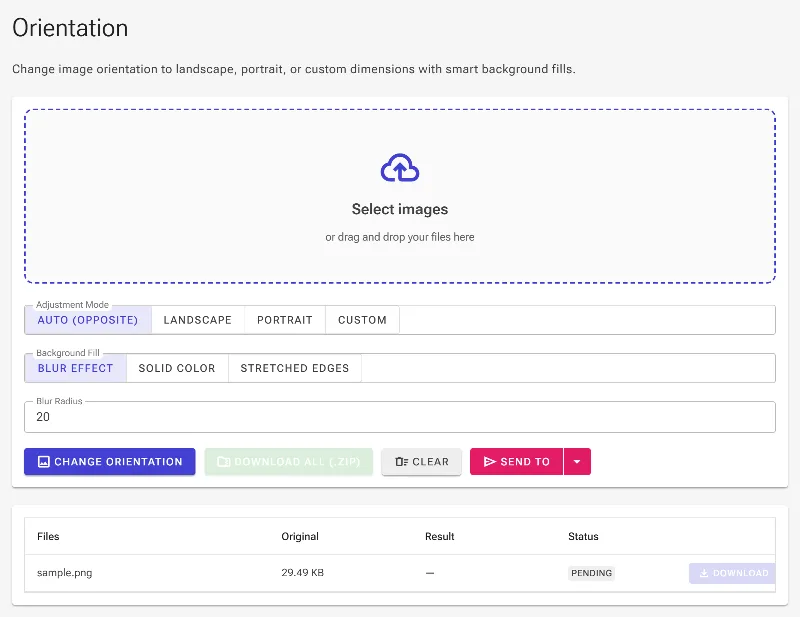
Upload your source images
An image uploaded to the orientation queue.

3Choose your target orientation

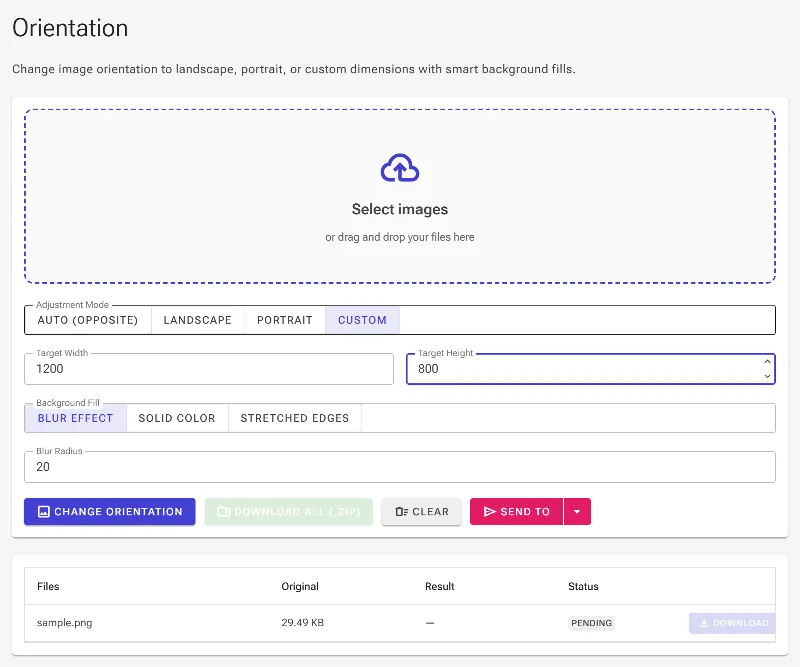
Select your orientation strategy. You can force standard landscape or portrait formats, or choose Custom to manually define target measurements. Under the Custom option, you can enter exact pixel dimensions into the Custom Width and Custom Height input fields to fit a specific container.

Choose your target orientation
Configuring the custom orientation mode with manual width and height inputs.

4Adjust the background Blur Radius

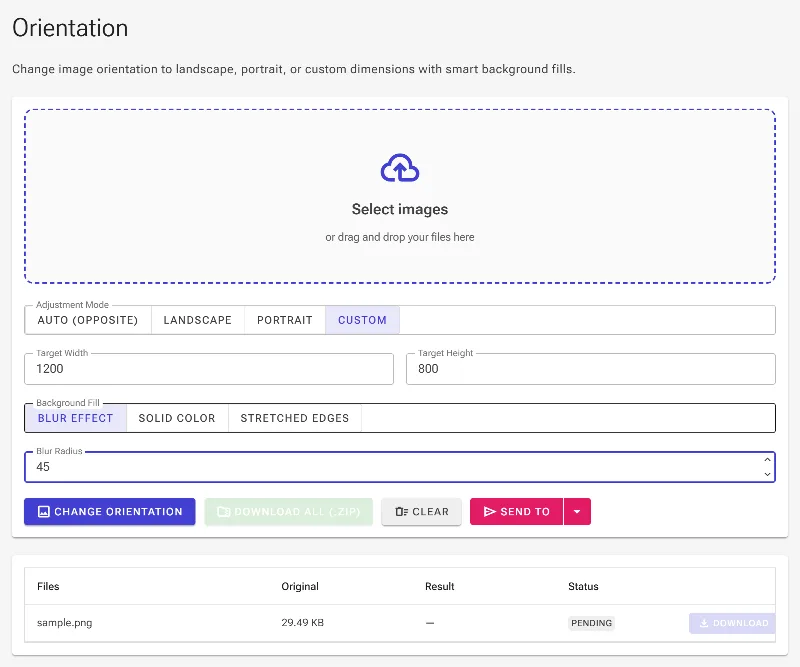
When transforming an aspect ratio, the empty space is filled to match the target size. Under Fill Mode, select Blur to generate a scaled-up, soft version of your photo behind the centered original. You can raise or lower the Blur Radius input to control how detailed or diffused this background extension appears.

Adjust the background Blur Radius
Setting up a custom Blur Radius value for the background extension.

5Apply Solid Color gradients

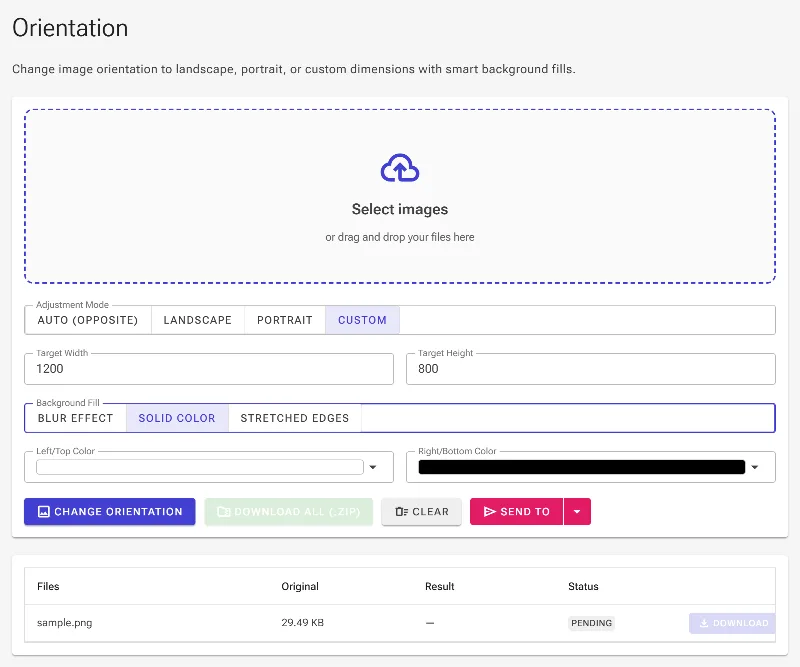
To frame your photos with colored borders instead of a blur, switch the Fill Mode to Solid Color. This reveals dual gradient parameters, letting you pick a Top/Left color and a Right/Bottom color to paint a sleek, modern gradient across the newly created margins of your canvas.

Apply Solid Color gradients
Activating Solid Color mode to access gradient background styling.

6Configure Stretched Edges extension

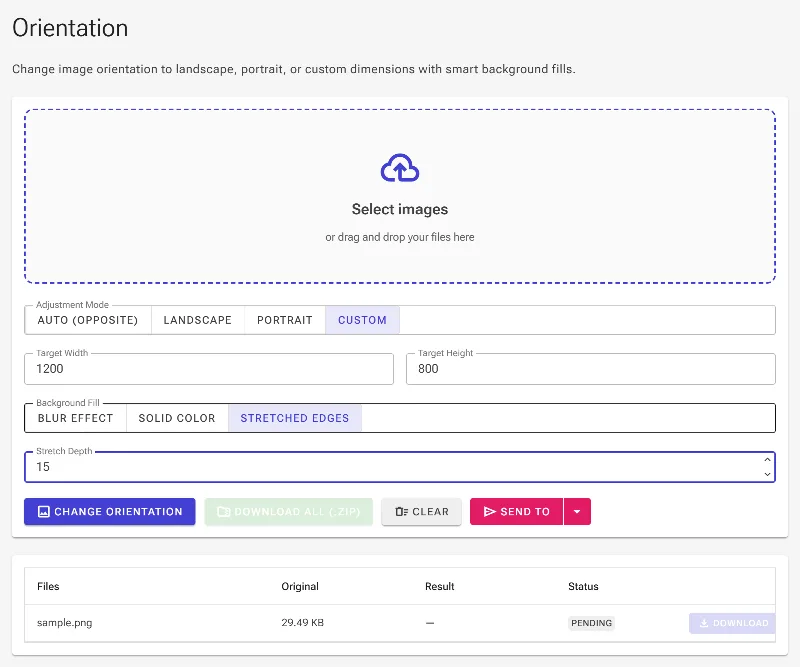
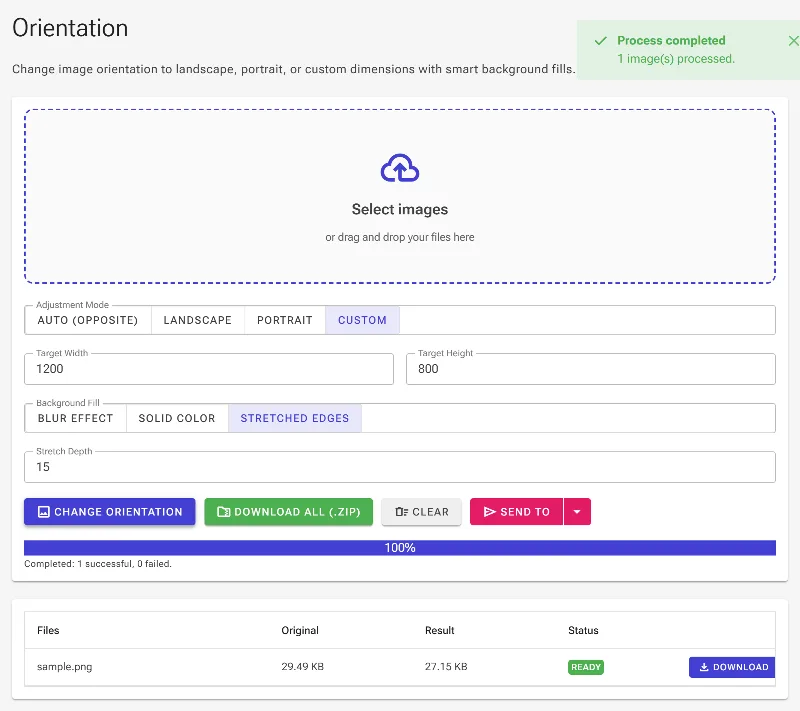
For a seamless and modern look, choose the Stretch Edges fill mode. This option grabs the outermost pixels of your image and stretches them linearly across the blank outer areas. The Stretch Depth parameter controls exactly how many pixels deep the sampling is, giving you full control over the border style.

Configure Stretched Edges extension
Selecting Stretched Edges and entering a target stretch depth.

7Process and download your image

Click the Change Orientation button to generate your new image instantly with the configured dimensions and background. Once finished, download your newly formatted horizontal or vertical image directly from the job list or export everything in a single ZIP archive.

Process and download your image
Clicking the process button to render and download the redesigned image.