Convert Image to Grayscale Online with Professional Control
Select files
or drag and drop your images here
Transform your color photos into stunning black and white masterpieces instantly right inside your web browser. Image Studio runs entirely on your local device, ensuring your private images never leave your computer and are never uploaded to a server. Experience a perfect blend of professional-grade color-science conversion, complete data privacy, and zero usage limits.
Why It's Different
100% Private, Local Processing
Your images are processed directly in your browser. Because we don't upload your files to external servers, your sensitive data remains entirely secure and private.
Mathematical Color Science
Go beyond generic desaturation. Choose between industry-standard conversion formulas like ITU-R BT.709 (HDTV), ITU-R BT.601 (PAL/NTSC), or a simple color average for precise tonality.
Custom RGB Coefficients
Take creative control of your output. Manually adjust the weight sliders for Red, Green, and Blue channels to highlight specific color tones and change the mood of your photo.
Adjustable Gray Shade Limit
Reduce the color space of your output by setting a strict limit on the number of gray shades (up to 256) for vintage, stylized, or low-bit posterization effects.
How to Convert an Image to Grayscale
Upload your image: Drag and drop your photo or click to select a file from your device.
Choose your conversion method: Select Average, ITU-R BT.709, ITU-R BT.601, or Custom weights to determine how colors map to grays.
Fine-tune details (Optional): Adjust individual RGB weights or limit the total number of gray shades (up to 256) to achieve your desired aesthetic.
Save your new photo: Click the download button to instantly save your high-resolution grayscale image to your local storage.
Use It for Anything
Professional Digital Art & Photography
Achieve the perfect monochrome look by customizing exactly how light and dark colors translate to gray values.
Retro Gaming & Posterized Art
Restrict your image to a low number of gray levels (like 4, 8, or 16) to create stylized, dithered, or vintage screen-print designs.
Optimizing OCR & Document Scans
Convert colored document scans or receipts into high-contrast, clean grayscale to dramatically improve text recognition software results.
Professional Monochrome Made Simple
Create gorgeous, highly customized black and white images without compromising your privacy or downloading bulky software. Try our advanced, browser-based grayscale converter today and enjoy total control over your digital media.
FAQ
Frequently Asked Questions
What is the difference between the BT.709 and BT.601 formulas?
These are standard color-space standards used to calculate relative luminance. ITU-R BT.709 is calibrated for modern high-definition displays, while ITU-R BT.601 matches the legacy television standards (PAL/NTSC). Each formula weights the red, green, and blue channels differently to mimic how the human eye naturally perceives brightness on screen.
Can I control which colors appear brighter in my black and white photo?
Yes, by choosing the "Custom Coefficients" option. Adjusting the Red, Green, and Blue channel sliders manually allows you to decide which color wavelengths appear brighter (closer to white) or darker (closer to black) in the final grayscale image.
How does limiting the number of gray shades help my design?
Limiting the output colors (up to 256 shades) reduces the continuous color gradient of your image. If you restrict the image to a low number (like 8 or 16 shades), it creates a high-contrast, stylized "posterized" look that is ideal for printmaking, vector tracing, or retro digital art.
Are my images uploaded to Image Studio's servers?
No, never. Image Studio is a privacy-first web utility. All image rendering, mathematical conversions, and file processing happen completely on your local computer using client-side JavaScript. Your data remains entirely yours.
How to convert an image to grayscale with custom formulas and shades
Convert any color image to monochrome entirely in your browser using high-fidelity conversion algorithms. Control color-to-gray translation ratios with industry-standard formulas or custom channel weighting, and limit shades for unique low-fidelity styles.
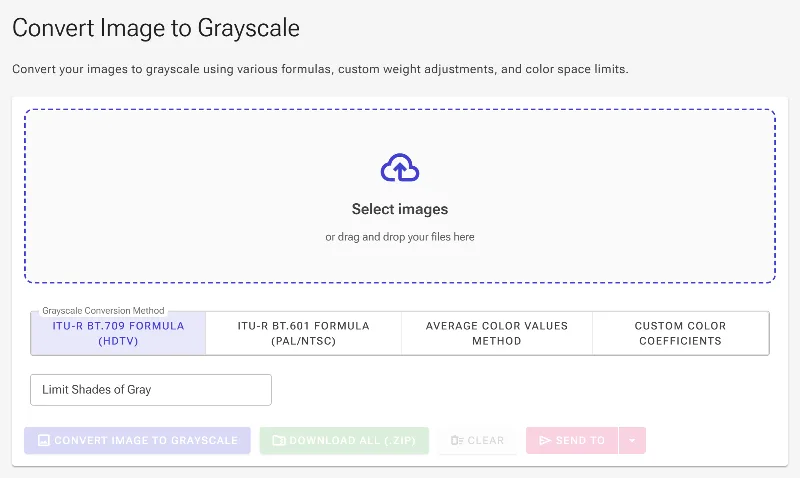
1Open the grayscale converter
Begin by accessing the grayscale conversion workspace in your web browser. This tool operates entirely client-side, meaning your images are processed locally within your browser and never uploaded to any server.
The empty grayscale tool ready for image loading.
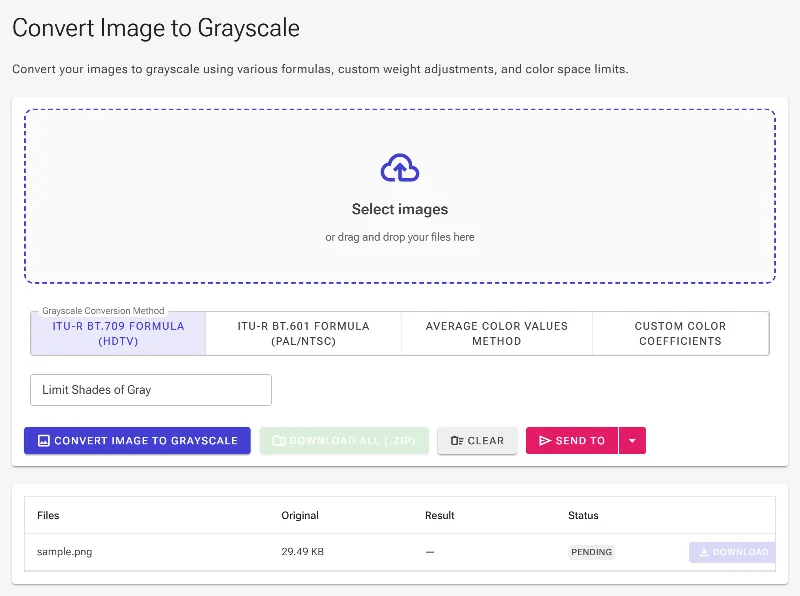
2Upload your target image
Click the file picker or drag and drop an image file to upload. Once loaded, the image metadata is initialized, and the batch processing controls become ready for your configuration.
Uploading a color image to prepare it for grayscale rendering.
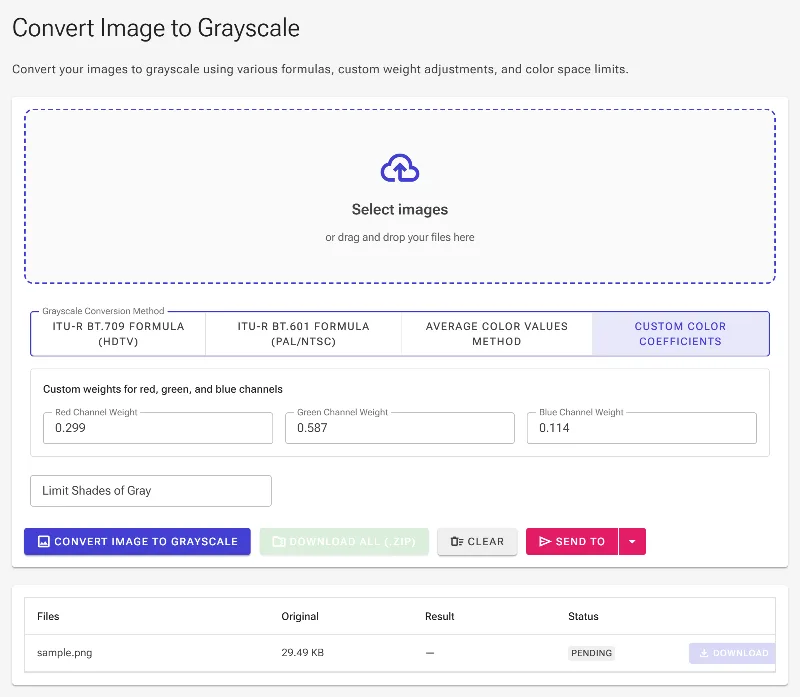
3Select a grayscale conversion method
Choose how colors are translated into brightness. The BT.709 option mimics modern high-definition screens, BT.601 matches legacy broadcast television, and Average splits channels evenly. Click the Custom button to unlock advanced individual channel control.
Selecting Custom from the conversion formula selector.
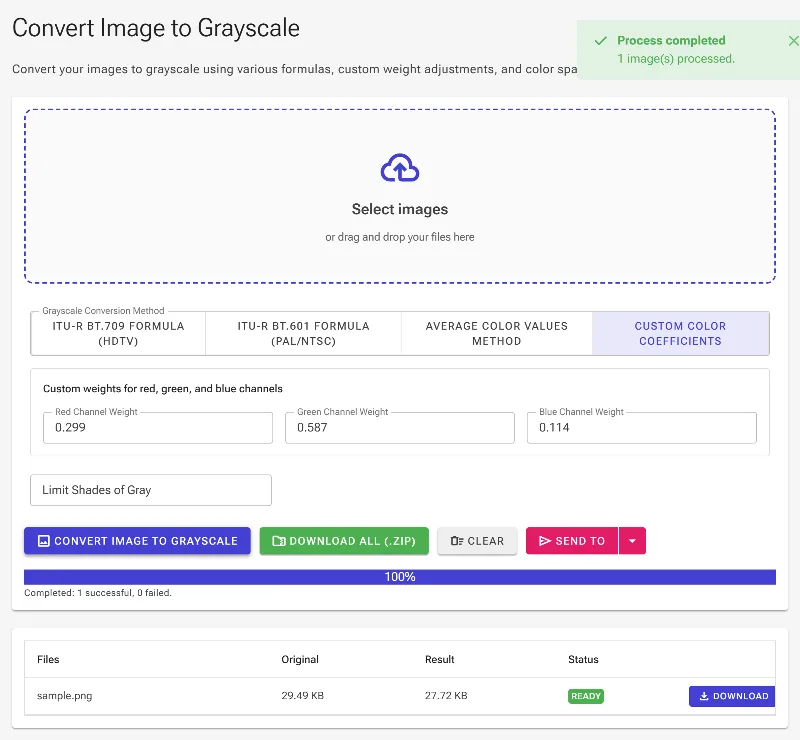
4Apply conversion and save your image
Click the primary Grayscale button to execute the rendering pipeline. The processed monochrome image will display in the grid below, where you can inspect your changes and click the download option to save your new black-and-white asset.
Running the pipeline to produce the customized grayscale result.