Downsize Images Online with Smart Pixel Smoothing
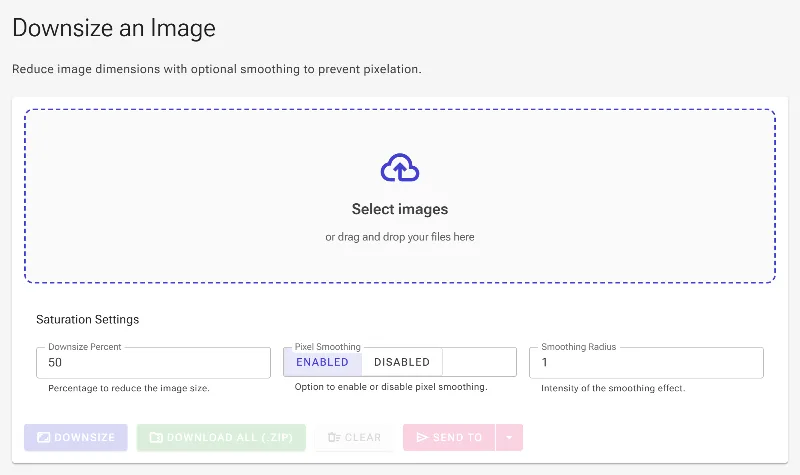
or drag and drop your images here
Shrink your images to the perfect size instantly without sacrificing quality or risking your privacy. Image Studio runs entirely in your local browser, meaning your photos are never uploaded to an external server, process in milliseconds, and are completely free to downsize with no limits.
Why It's Different
100% Private & Local Processing
Your images never leave your device. Because all downsizing happens securely within your browser, your sensitive data is completely safe from third-party servers.
Custom Downsize Percentage
Choose exactly how much you want to scale down your image with an intuitive percentage slider, giving you ultimate control over dimensions and file size.
Smart Pixel-Smoothing Effect
Prevent ugly pixelation and jagged edges. Our advanced smoothing algorithm keeps your downscaled images looking crisp, clean, and professional.
Zero Limits, Sign-ups, or Watermarks
Downsize as many images as you need without hitting daily limits, paying for premium subscriptions, or dealing with intrusive watermarks.
How to Downsize an Image
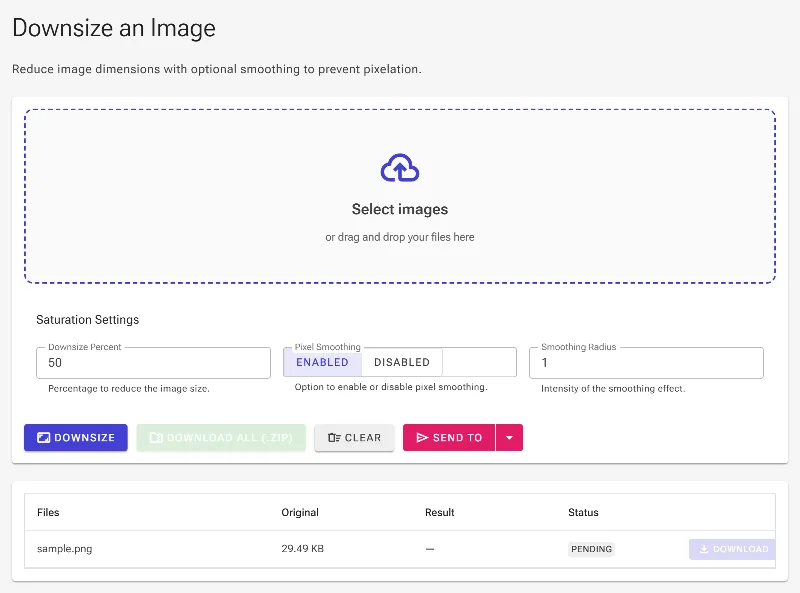
- Upload your image: Drag and drop your image file or click to select one from your device.
- Adjust the scale percentage: Use the Downsize Percent slider to set your target reduction level.
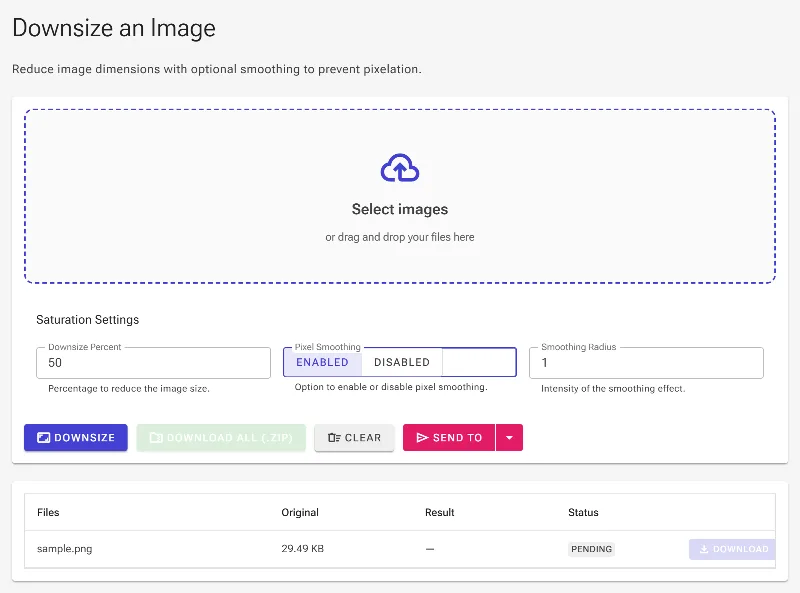
- Apply Pixel Smoothing: Toggle the Smooth Effect to prevent pixelation and ensure clean, smooth transitions across downscaled pixels.
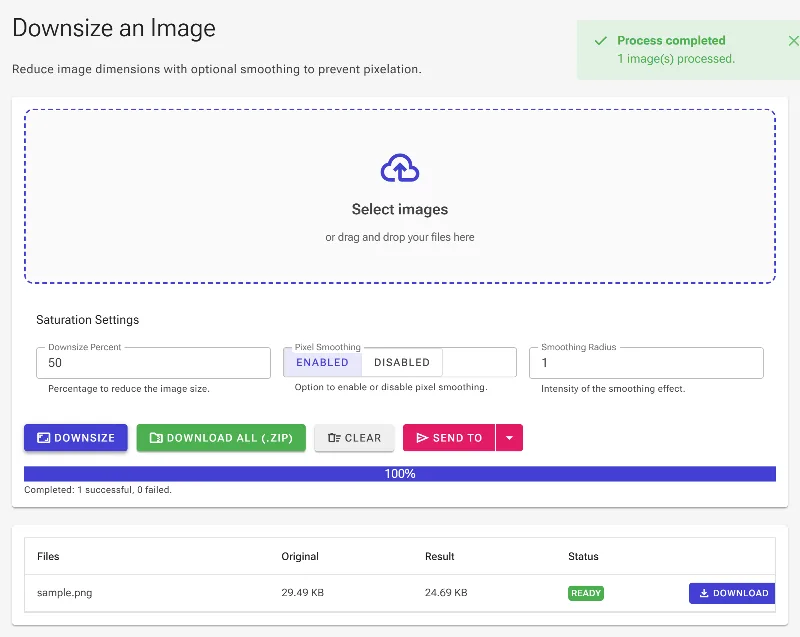
- Download instantly: Click the download button to save your perfectly downsized, high-quality image directly to your device.
Use It for Anything
Web Design & SEO Optimization
Downscale heavy website assets to decrease page load times and boost your search engine rankings.
Social Media & Profile Pics
Quickly resize profile pictures, banners, or posts to fit strict platform dimensions perfectly.
Email & Form Uploads
Shrink large high-res photos to bypass email attachment limits and online application upload restrictions.
Start Shrinking Your Images Safely
Experience the fastest, safest way to shrink your images without losing their sharp details. Try our browser-based downsizer today and optimize your photos in seconds!
Frequently Asked Questions
How does the Pixel Smoothing (Smooth Effect) work?
When you downscale an image, discarding pixels can cause jagged edges and pixelation. Our Smooth Effect applies an intelligent anti-aliasing algorithm that blends neighboring pixels, preserving smooth gradients and keeping your smaller image looking natural and sharp.
Are my images uploaded to any servers?
Absolutely not. Image Studio operates entirely on your local machine using client-side technology. Your files never touch our servers, making this the most secure way to downsize sensitive, personal, or proprietary images.
Does downsizing an image reduce its file size?
Yes. By reducing the overall pixel dimensions (width and height) via your chosen percentage, you significantly decrease the physical file size, making it much easier to share, upload, and store.
Is there a limit to how many images I can downscale?
No. Since the processing uses your browser's local resources, we don't have server costs to pass on to you. You can downsize unlimited images, entirely for free, with no registration required.