Hide Faces in Photos Online: 100% Private Face Censoring Tool
or drag and drop your images here
Protect personal privacy instantly with Image Studio's free, browser-based face-hiding tool. Your images never leave your computer—all censoring, blurring, and pixelating happen completely locally in your browser. Effortlessly mask sensitive details, identities, or license plates in seconds with zero uploads and zero sign-ups required.
Why it's different
100% Client-Side Privacy
Your photos are processed entirely within your browser. Since nothing is uploaded to an external server, your sensitive images remain completely private and secure under your own control.
Versatile Censoring Modes
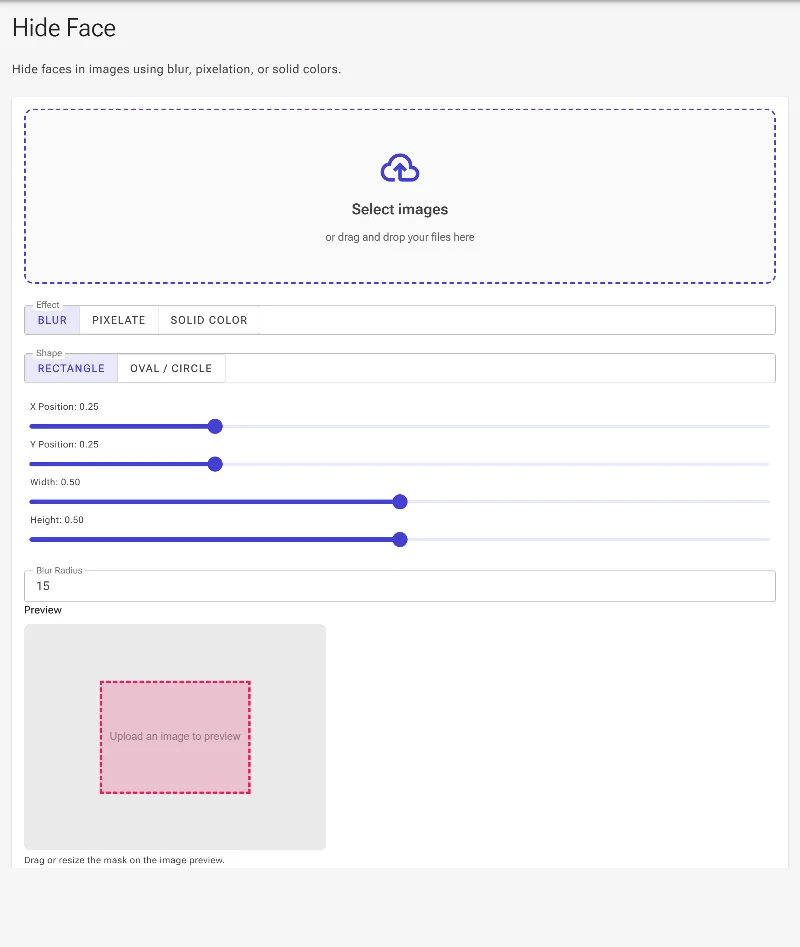
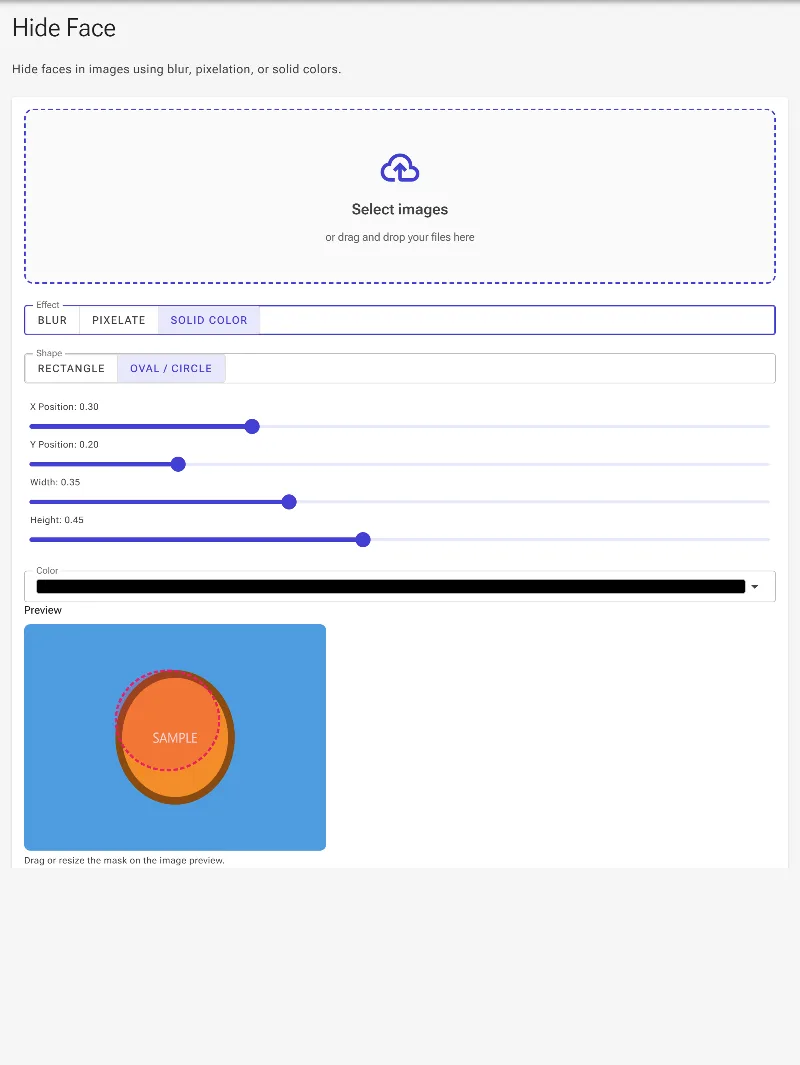
Choose between smooth blurring (with adjustable blur radius), classic pixelation (with adjustable pixel size), or solid color blocks with a custom color picker.
Pixel-Perfect Adjustments
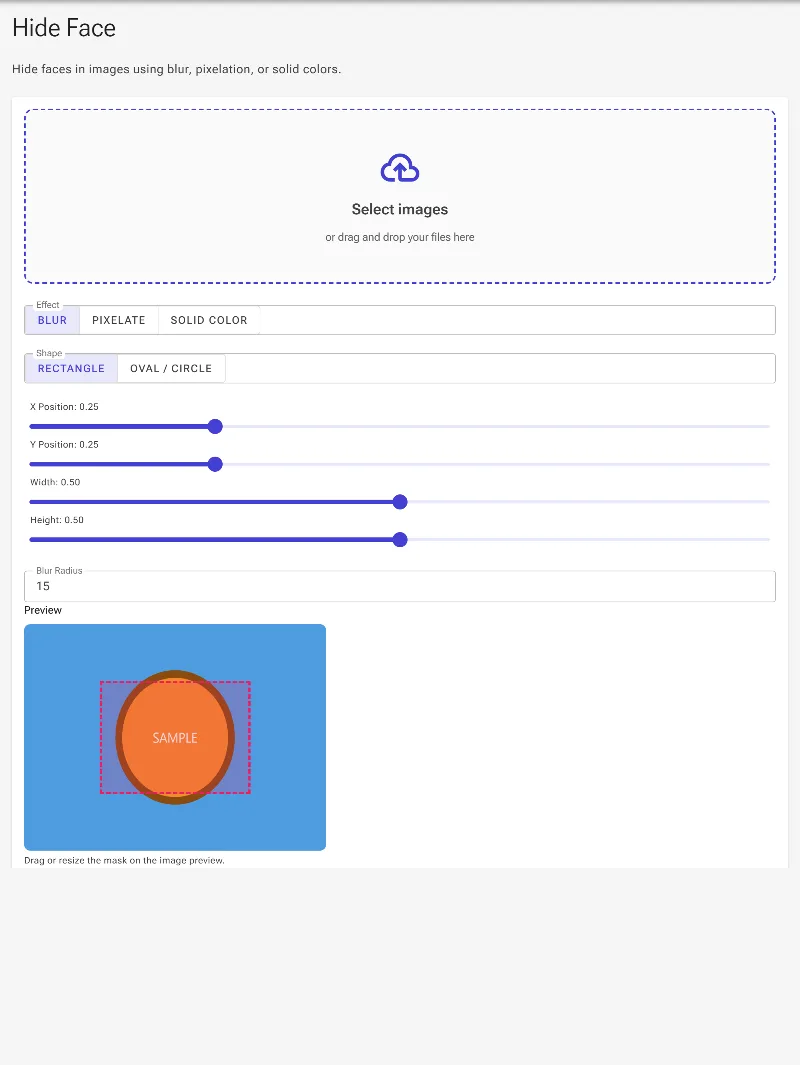
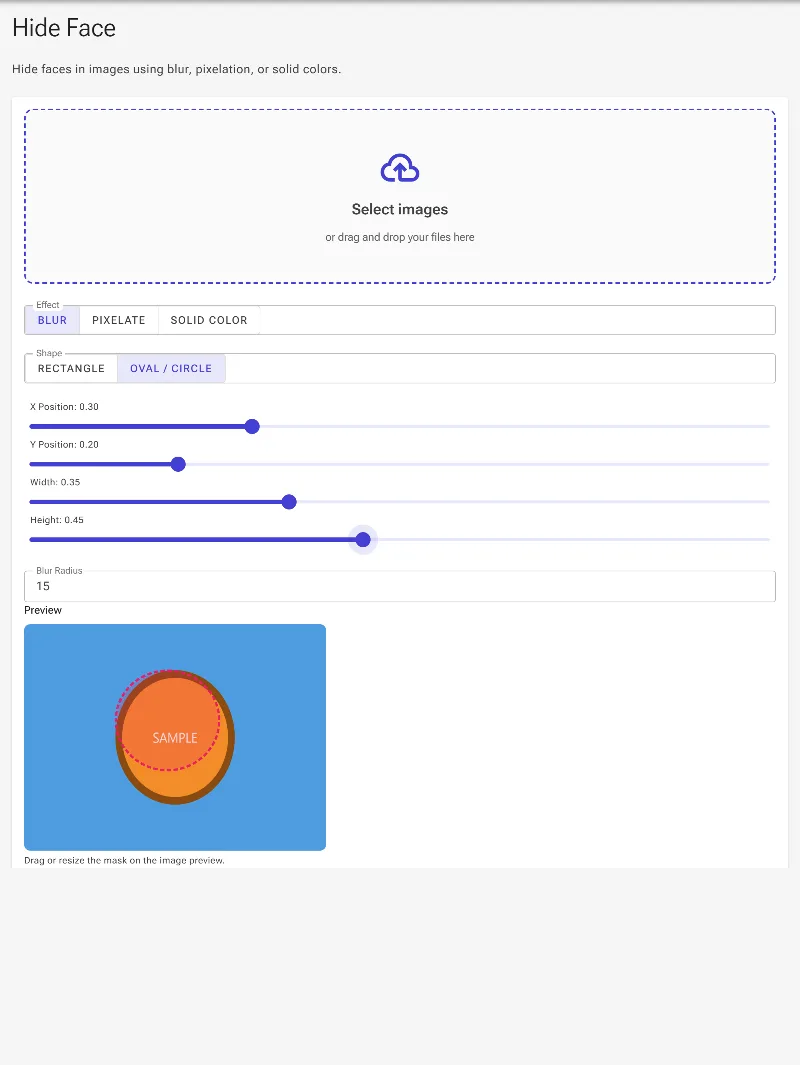
Use intuitive interactive drag-and-drop handles directly on the image preview to position circular or rectangular masks, or fine-tune manually using exact coordinates (X, Y) and dimensions (Width, Height).
Completely Free with No Limits
Enjoy unlimited, high-resolution processing with no registration, no watermarks, and absolutely no rate limits.
How to hide a face in an image
- Upload your image: Drag and drop your photo into the editor or click to browse. It loads instantly because no server upload is required.
- Select your mask style: Choose between Blur, Pixelate, or Solid Color, and pick your preferred shape (Rectangle/Square or Oval/Circle).
- Position and resize: Click and drag the selection box over the face you want to hide, or enter manual coordinates (X, Y, Width, Height) for absolute precision. Adjust the blur strength, pixel size, or solid color as needed.
- Download your secure image: Click "Download" to save your anonymized photo instantly to your device in high resolution.
Use it for anything
Social Media Sharing
Protect the identity of minors, friends, or bystanders in the background before posting photos on Instagram, Facebook, or X.
Professional & Legal Compliance
Redact faces, ID cards, and license plates in legal, medical, or corporate documentation to comply with privacy laws like GDPR and HIPAA.
Journalism & Activism
Anonymize sensitive portraits, crowds, or protests locally on your machine before publishing or sharing public interest stories.
Anonymize with Peace of Mind
Anonymize your photos with complete peace of mind using a tool designed to put your privacy first. Try Image Studio now and censor your images securely in just a few clicks!
Frequently Asked Questions
Is my uploaded photo safe?
Yes, absolutely. Image Studio runs 100% locally in your web browser using client-side technology. Your files are never uploaded to our servers, keeping your sensitive data completely secure and private.
Can I hide multiple faces in a single image?
Yes! You can add multiple masking layers to cover as many faces, license plates, or sensitive text blocks as you need in a single session.
What censoring options are available?
We support smooth Gaussian blur (with adjustable radius), retro pixelation (with customizable grid sizes), and solid color overlays (with a full RGBA color picker) in both rectangular and circular shapes.
Is there a limit to how many images I can process?
No. Because all processing is done locally on your own device, there are no bandwidth restrictions, no daily limits, and no paid paywalls. Use it as much as you need!