Pixelate Faces in Images Locally and Securely
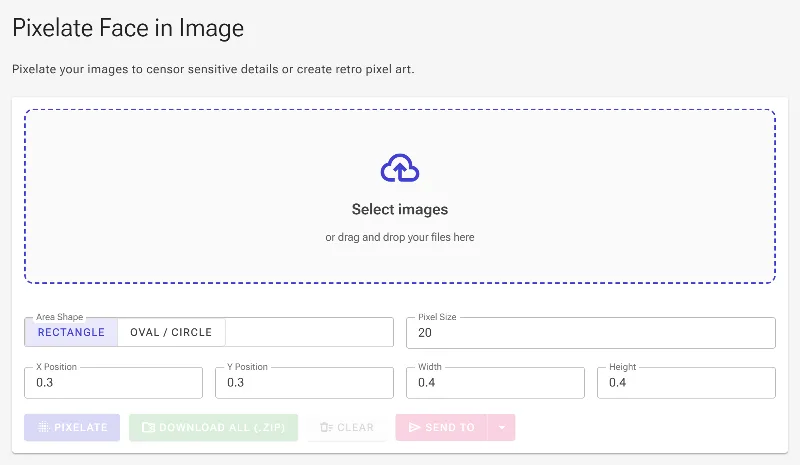
or drag and drop your images here
Protect personal privacy in seconds with Image Studio's free, client-side face pixelator. Because your images never leave your device, you can safely obscure faces, sensitive data, and identities without worrying about server uploads or data leaks. It's fast, completely free, and works entirely within your web browser.
Why It's Different
100% Serverless Privacy
Your photos are processed entirely within your local browser, meaning your sensitive images are never uploaded, stored, or shared.
Circular & Rectangular Masks
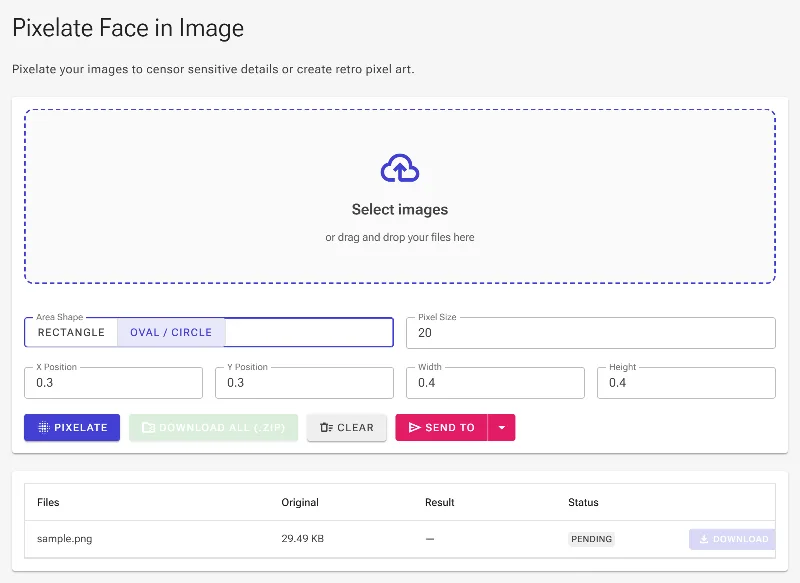
Choose between soft oval/circular pixelation or sharp square/rectangular blocks to perfectly fit any face or object.
Manual Positioning & Size Controls
Fine-tune the exact X/Y coordinates, width, height, and block size (intensity) of your pixelation layer for pixel-perfect censorship.
Zero Limits, No Sign-Ups
Enjoy unlimited, high-resolution processing with no registration, no watermarks, and no usage caps.
How to Pixelate a Face
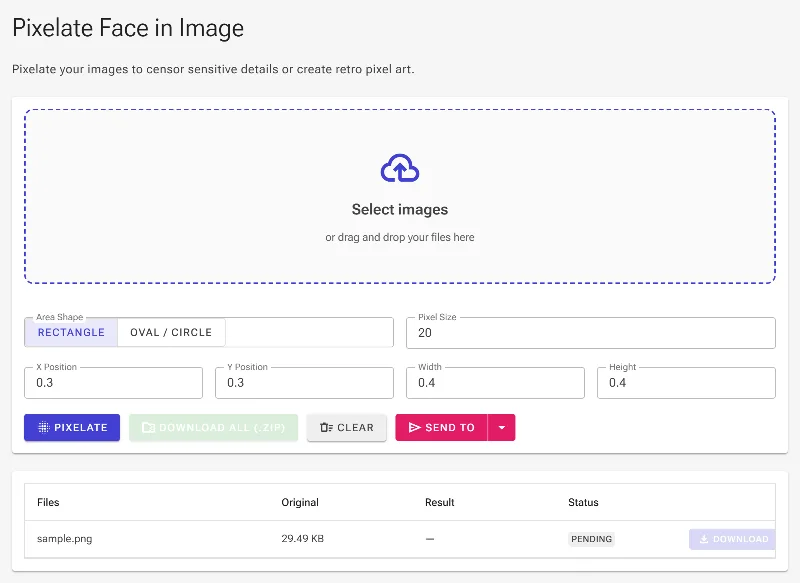
- Upload your image: Drag and drop your photo or click to select a file from your device.
- Choose your mask shape: Select either a circular/oval or rectangular/square pixelation layer.
- Position and resize: Drag the layer over the face or use the manual X, Y, width, and height inputs for ultra-precise placement.
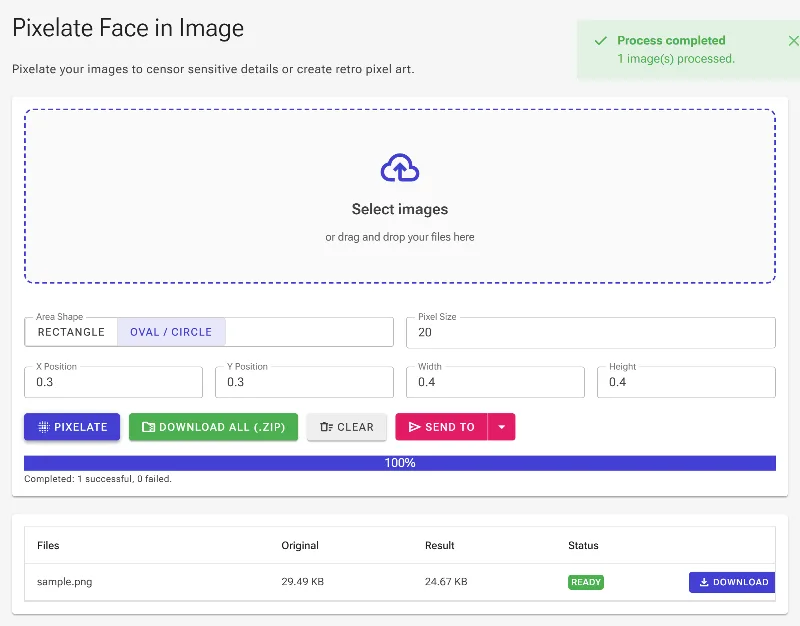
- Adjust intensity & save: Use the slider to increase or decrease the pixel block size, then download your fully censored, high-quality image.
Use It for Anything
Protecting Minor Privacy
Safely blur or pixelate children's faces before sharing classroom, sports, or family photos on social media.
Anonymizing Public Crowds
Obscure bystanders, pedestrians, or license plates in public photography to comply with local privacy regulations.
Securing Sensitive Documents
Censor ID photos, profile pictures, or faces in legal and medical documents before digital distribution.
Protect Your Visual Media
Safeguard your identity and keep your media secure with the ultimate zero-upload pixelation tool. Try Image Studio today and experience instant, private photo editing.
Frequently Asked Questions
Is my photo uploaded to any server?
No, never. Image Studio uses advanced in-browser technology, meaning all image processing happens locally on your computer. Your photos are never sent to a server.
Can I pixelate multiple faces in one image?
Yes. You can easily apply and configure multiple pixelation masks to cover several faces or sensitive details within a single photo.
What is the difference between circular and rectangular pixelation?
Rectangular pixelation is ideal for censoring documents, license plates, or broad areas. Circular pixelation is designed to fit the natural shape of human faces, offering a cleaner, less intrusive look.
Is there a limit on the file size or the number of photos I can process?
No. Since the tool runs locally in your web browser, there are absolutely no file size limits, rate limits, or daily usage caps.