Rotate Your Images Online with Perfect Precision
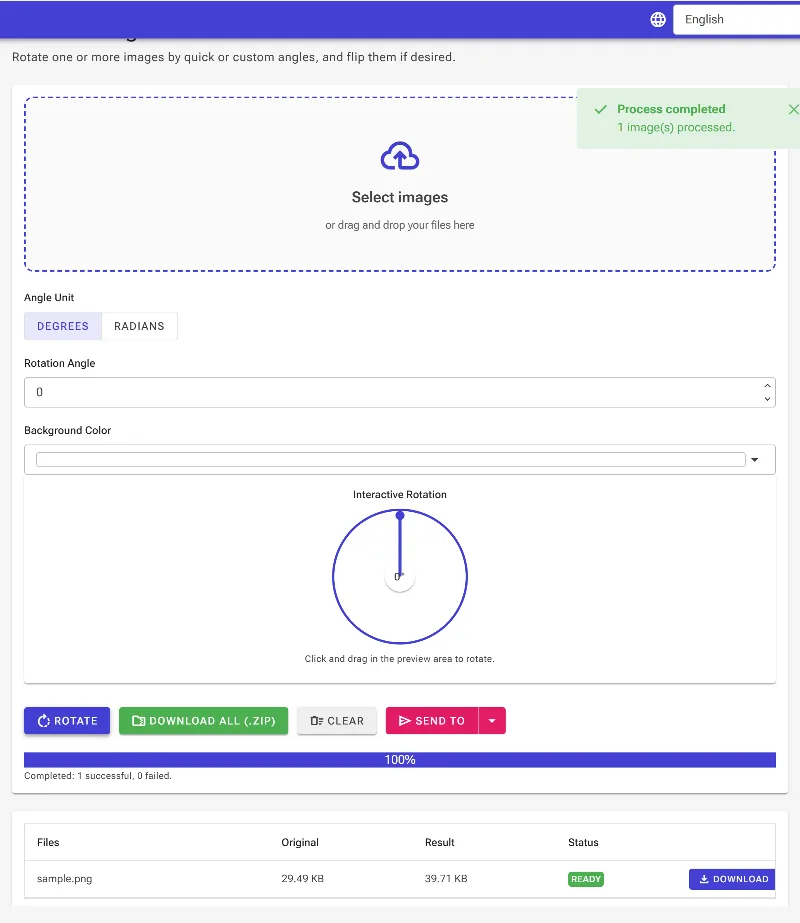
or drag and drop your images here
Need to adjust the angle of your photo or graphic without compromising your privacy? Image Studio's free image rotator lets you tilt, spin, and realign images instantly right inside your browser. Because everything processes locally on your device, your photos never touch our servers, giving you 100% secure, unlimited, and lightning-fast edits.
Why it's different
100% Private & Local
Your images are processed entirely within your web browser. No uploads to external servers, no data leakage, and absolute privacy guaranteed.
Degrees & Radians Support
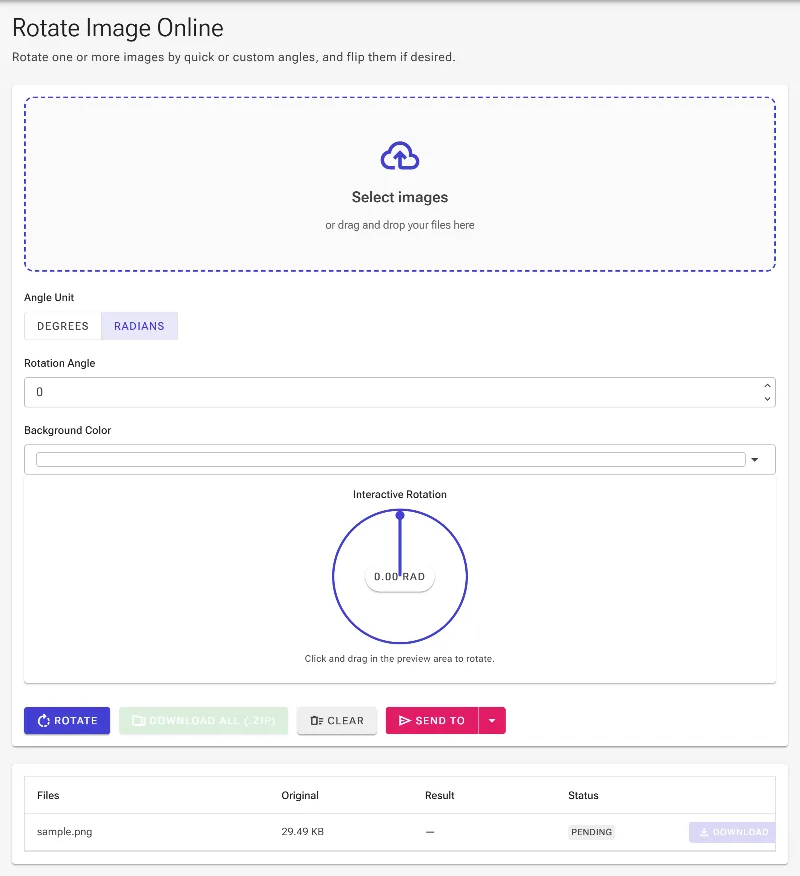
Dial in the exact mathematical alignment you need. Input custom values in degrees or radians for pixel-perfect structural adjustments.
Interactive Drag-to-Rotate
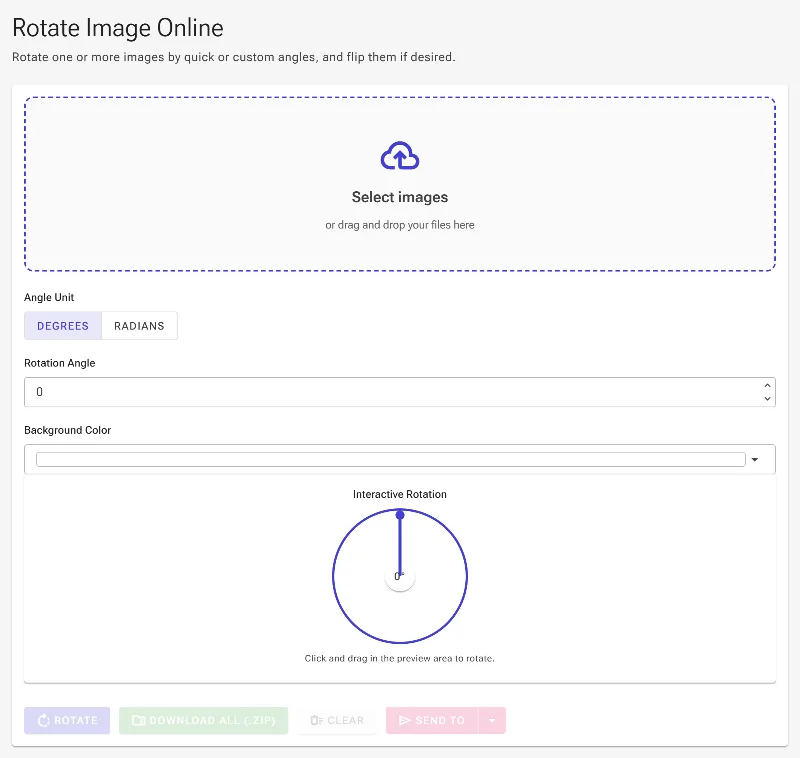
Prefer a hands-on approach? Simply click and drag your mouse anywhere in the live preview area to rotate your image visually and dynamically.
Zero Limits, Zero Fees
Rotate as many high-resolution images as you want with no file size limits, no daily caps, and absolutely no registration required.
How to rotate an image
Upload your photo
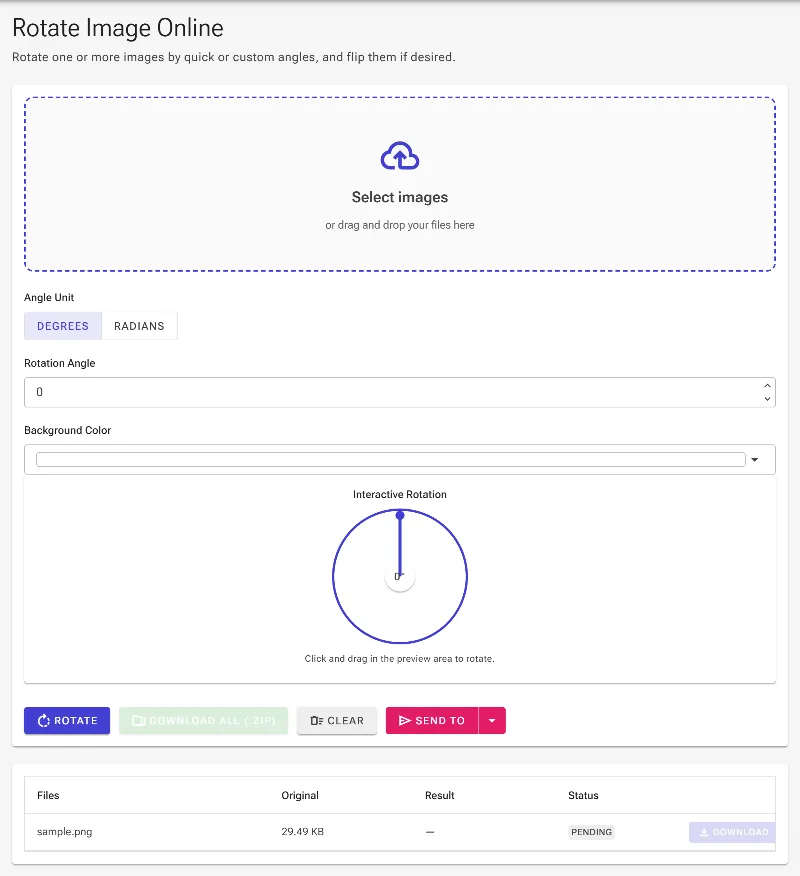
Drag and drop your image into the workspace or click to select a file from your device.
Choose your control method
Input your desired rotation angle in precise degrees or radians, using negative values for clockwise rotation and positive for counter-clockwise.
Rotate visually (optional)
Click and drag directly on the live image preview to tilt and spin the image manually until it looks just right.
Save your edited image
Click the export button to instantly download your perfectly rotated image in high quality.
Use it for anything
Fixing Crooked Photography
Quickly straighten horizons, tilted portraits, or poorly aligned mobile photos.
Technical & CAD Alignments
Use precise radian or degree configurations to align engineering mockups, drafts, and technical diagrams.
Creative Graphic Layouts
Angle logos, banners, and digital assets to fit dynamic social media layouts or web design grids.
Get Started Today
Enjoy uncompromising precision and total data security in one elegant tool. Try Image Studio's interactive image rotator today and align your visuals flawlessly in seconds.
Frequently Asked Questions
Is it safe to rotate my private images here?
Absolutely. Unlike other online editors, Image Studio works entirely client-side. Your photos never leave your device and are never uploaded to any server, making it the safest way to edit sensitive documents, personal photos, or proprietary assets.
Can I rotate images clockwise and counter-clockwise?
Yes. By default, positive input values rotate your image counter-clockwise. To rotate clockwise, simply input a negative value (for example, -45 degrees) or use the interactive drag tool to rotate in any direction.
What is the difference between rotating by degrees and radians?
Degrees divide a full circle into 360 units, while radians use mathematical pi-based measurements (where 180 degrees equals π radians). We provide both input methods to support standard photography edits as well as precise scientific, mathematical, and engineering requirements.
Are there any file size limits or watermarks?
No. Since the processing power comes from your computer's hardware rather than our servers, there are no file size restrictions, no watermarks, and no usage limits. You can edit massive, high-resolution images completely free.