Professional Image Sharpener Online — 100% Free & Local
Select files
or drag and drop your images here
Instantly fix blurry photos and bring out stunning details with our professional-grade, free online image sharpener. Unlike other tools, Image Studio runs entirely in your web browser, meaning your images never leave your computer. Experience desktop-class sharpening algorithms—including Unsharp Mask, Smart Sharpen, and Deconvolution—completely free, with no registration or limits.
The Image Studio Advantage
Why our image sharpener is different
100% Private & Local Processing
Your photos are processed directly inside your browser. No files are uploaded to servers, keeping your sensitive images entirely secure.
Professional-Grade Fine Tuning
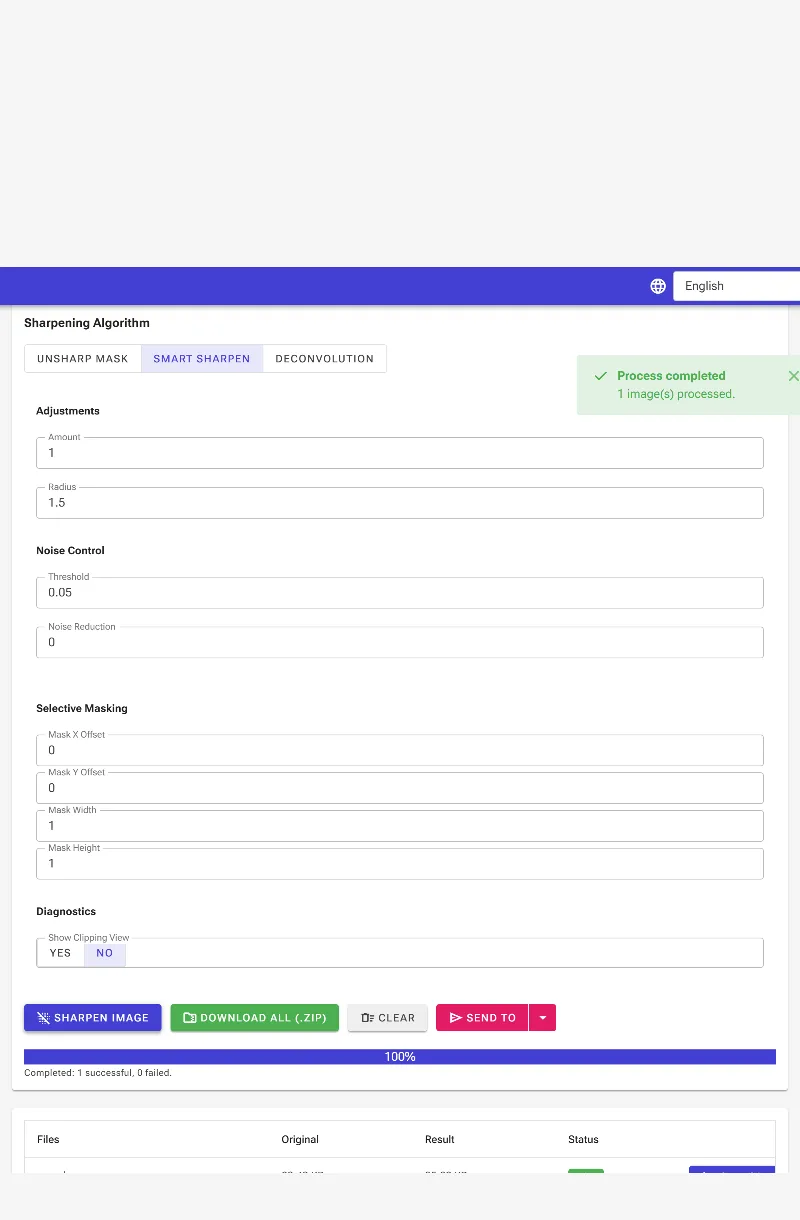
Go beyond basic sliders with precision controls for Amount, Radius, Threshold (Masking), and dedicated Noise Reduction to prevent unwanted grain.
Three Elite Sharpening Modes
Choose between classic Unsharp Mask, halo-preventing Smart Sharpen, or Lens Deconvolution to actively reverse motion blur and camera defocus.
Completely Free with No Limits
Enjoy unlimited, high-resolution processing with zero watermarks, zero rate limits, and absolutely no registration required.
Quick Tutorial
How to sharpen an image
Step 1
Upload your image
Drag and drop your photo into the workspace. It loads instantly because it stays 100% local.
Step 2
Select your algorithm
Choose Unsharp Mask for classic pops, Smart Sharpen to avoid edge halos, or Deconvolution to correct physical blur.
Step 3
Adjust the sliders
Fine-tune the Amount and Radius. Use the Threshold and Noise Reduction controls to keep smooth areas free of digital grain.
Step 4
Refine and download
Toggle the Clipping View to check for over-sharpened pixels, use selective masking, and save your crisp, high-res image instantly.
Versatility
Use it for anything
Recovering Blurry Photos
Salvage precious, slightly out-of-focus family shots or camera-shake snapshots with powerful Deconvolution algorithms.
Product Photography & E-commerce
Make your product details pop, text legible, and textures clear to increase customer trust and conversions.
Portrait Touch-ups
Sharpen eyes, hair, and lashes while keeping skin natural using our advanced Threshold and Noise Reduction masking.
Ultimate Quality, Zero Privacy Compromises
Stop settling for soft, blurry images or risking your privacy on shady cloud servers. Experience the speed, safety, and power of Image Studio's professional-grade sharpening tools directly in your browser today.
FAQ
Frequently Asked Questions
How does local processing work?
Image Studio uses modern web technologies (WebAssembly and GPU acceleration) to process images directly inside your browser. Because your device handles the math, your photos never upload to any external server, ensuring absolute privacy and blazing-fast performance.
What is the difference between Unsharp Mask, Smart Sharpen, and Deconvolution?
Unsharp Mask is the classic method that boosts edge contrast. Smart Sharpen goes a step further by detecting edges to automatically minimize halos. Deconvolution is a mathematical model that attempts to reverse physical lens blur or camera shake, making it perfect for correcting actual out-of-focus images.
How do I avoid adding ugly noise or halos to my sharpened photos?
To prevent a grainy look, use the Threshold slider to exclude flat areas (like skin or sky) from being sharpened. You can also increase the Noise Reduction slider to smooth out flat regions, and keep your Radius small (under 1.5 pixels) to avoid thick, unnatural-looking halos around edges.
What does the Clipping View do?
The Clipping View is a diagnostic overlay that highlights areas in real-time (usually in magenta or black) where pixels are being pushed to pure white or black. This helps you identify over-sharpening immediately, letting you adjust your settings before losing valuable texture and detail.
How to sharpen images in your browser
Enhance blurry photos, recover fine details, and combat digital noise with advanced algorithms. This secure tool processes images directly on your device, ensuring your files never leave your browser.
1Open the sharpening tool
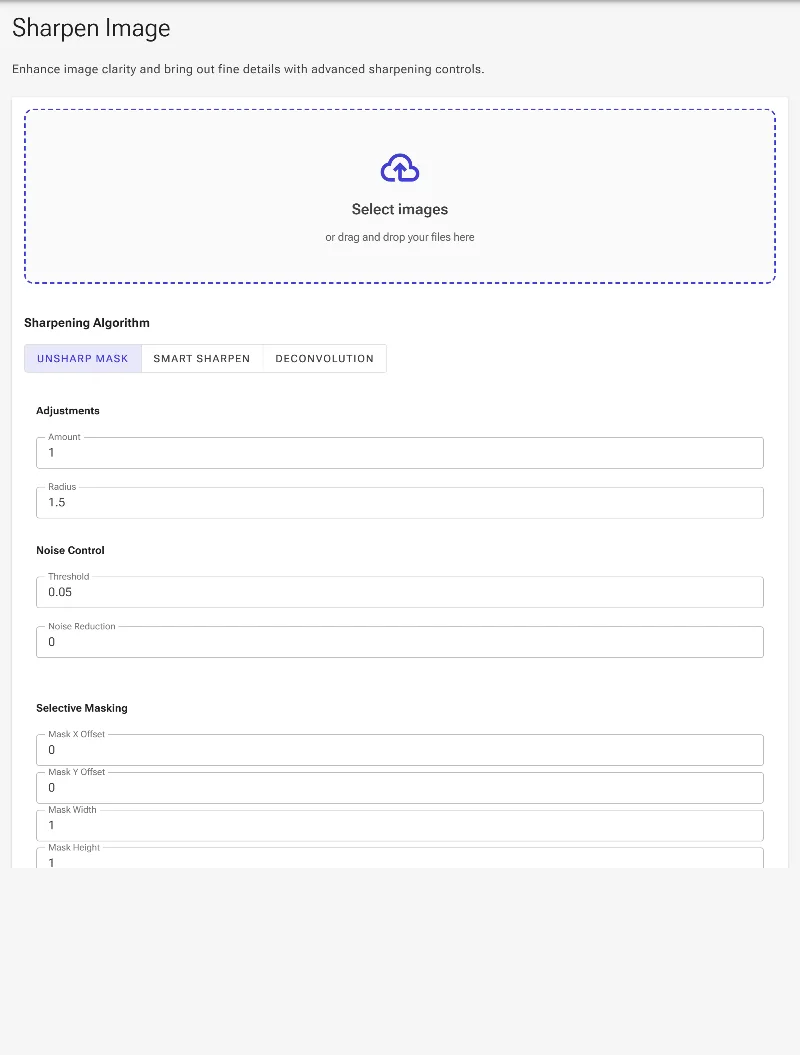
Begin by opening the web-based image sharpening tool. You will find a clean workspace featuring a file selector, algorithm options, and precise controls for intensity, radius, thresholding, noise reduction, and diagnostic tools.
The initial empty workspace of the browser image sharpening tool.
2Upload the image to process
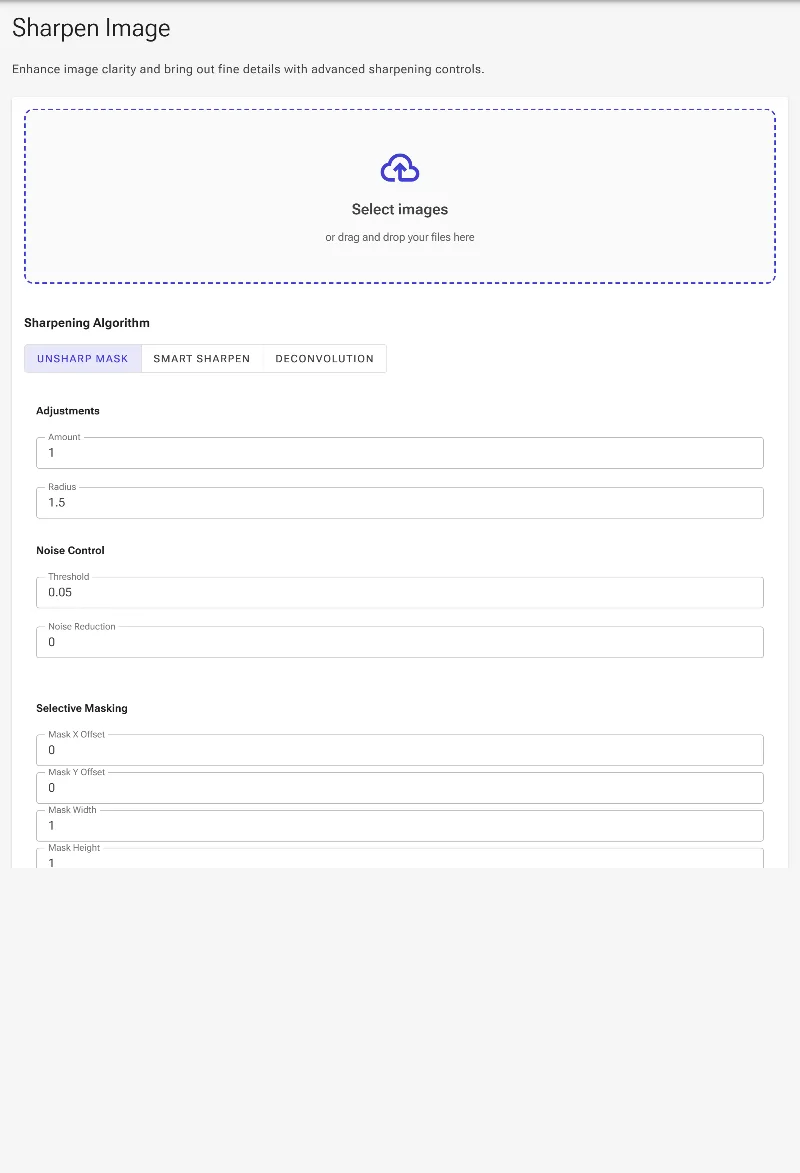
Select and upload the image you want to sharpen. The tool instantly loads your file and prepares it for processing, enabling all fine-tuning settings for the selected image.
Uploading a photo to begin the detail enhancement process.
3Select the ideal sharpening algorithm
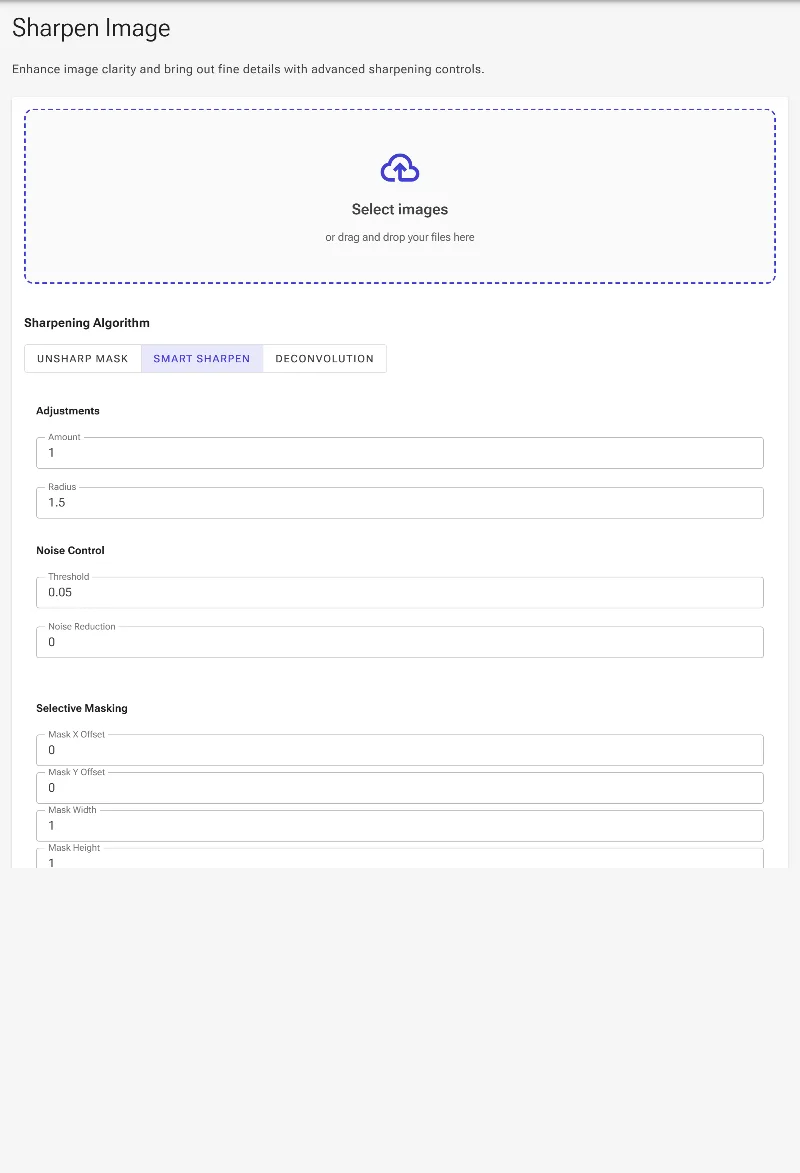
Choose from three distinct processing methods. Unsharp Mask is the classic, high-contrast standard; Smart Sharpen limits halo artifacts by clamping local pixel bounds; and Deconvolution uses advanced mathematics to reverse camera shake and physical lens blur.
Selecting the Smart Sharpen option to reduce halo artifacts.
4Analyze details with Clipping View
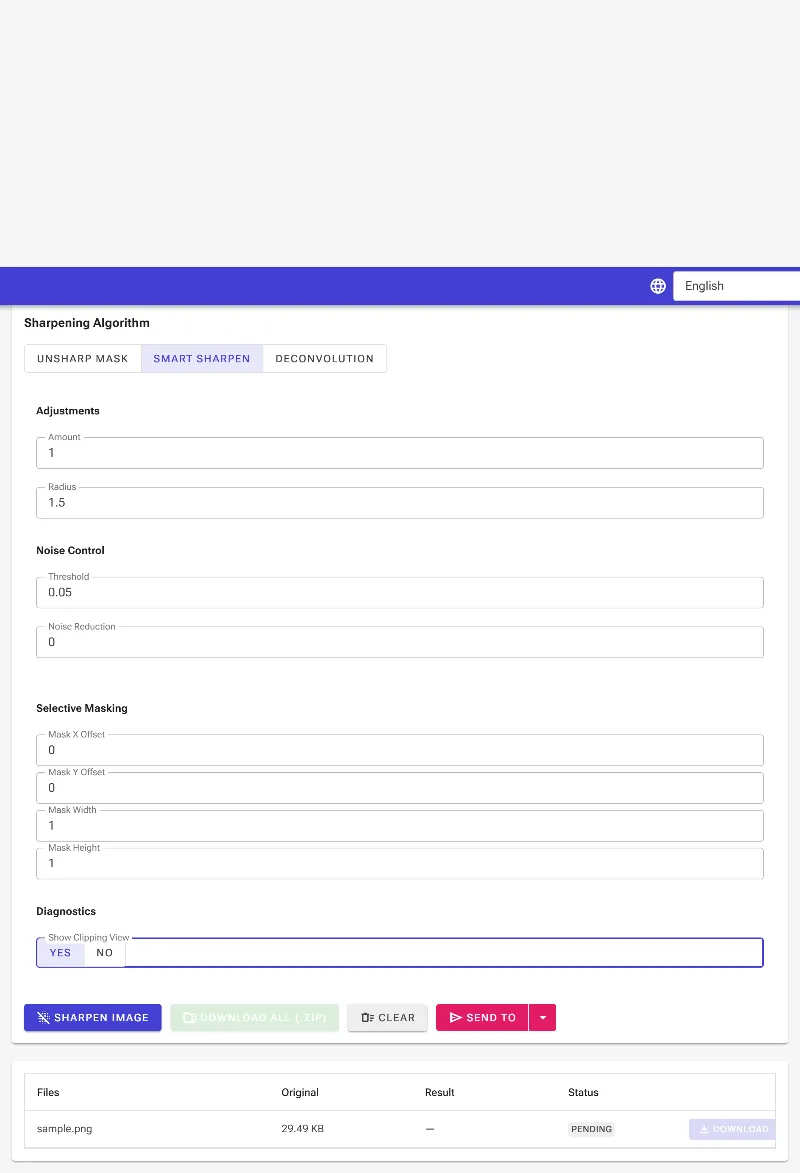
Toggle the Show Clipping diagnostics feature. When enabled, any pixels that are over-sharpened to the point of losing detail (clipping) will be highlighted with a bright magenta overlay, allowing you to quickly lower your settings if necessary.
Activating the diagnostic clipping view to locate blown-out pixels.
5Process and save your sharp image
Turn off the clipping view once you are satisfied with the settings, and then click the primary action button to run the pipeline. Your newly sharpened, high-quality image is processed locally and immediately made available to download.
Applying the final settings to generate and download the sharpened image.