Free Online Image Slicer & Precision Cropper

Select files

or drag and drop your images here

Slice, crop, and segment your images instantly right inside your browser. Image Studio runs entirely on your local machine, meaning your photos never touch an external server, ensuring 100% privacy and lightning-fast speeds with absolutely no upload limits.

Features

Why it's different

100% Private & Local Processing

Your data never leaves your computer. Our in-browser technology processes every image locally, keeping your sensitive photos completely secure.

Pixel-Perfect Coordinates

Manually adjust Left, Top, Width, and Height settings for professional-grade slicing accuracy, or let the crop auto-extend to the edges if dimensions are left empty.

Circular & Oval Masks

Break free from standard grids. Switch effortlessly between rectangular/square crops and circular/oval masks to design perfect avatars, stickers, and badges.

Instant Re-Slicing Workflow

Refine your crops in real-time. Our "Re-slice" feature automatically feeds your cropped output back into the editor as a new input for seamless multi-step editing.

How To

How to slice an image

  1. Load your image: Drag and drop your image into the workspace. It loads instantly without any upload delays.
  2. Define the crop area: Drag the interactive handles on the live preview, or enter precise pixel values for Left, Top, Width, and Height.
  3. Select your shape: Choose between a traditional rectangle/square or a clean circle/oval depending on your design needs.
  4. Save or Re-slice: Download your cropped image instantly, or click "Re-slice" to run another crop iteration on your new image.
Applications

Use it for anything

Profile Pictures & Avatars

Create perfectly centered circular or square profile photos for LinkedIn, Twitter, and Instagram.

Web UI & Asset Slicing

Extract precise components, icons, or banners from larger design mockups using exact pixel coordinates.

Quick Photo Framing

Crop out unwanted background elements and focus on the subject with zero compression or quality loss.

Get Started Now

Create clean, high-precision image crops in seconds without sacrificing your privacy. Drag your image in now to experience professional-grade local slicing.
FAQ

Frequently Asked Questions

Is my image data safe on Image Studio?
Yes, entirely. We use client-side technology to process your images directly in your browser. Your files are never uploaded to a server, meaning your privacy is 100% guaranteed.
Can I crop an image into a circle or oval?
Absolutely. You can toggle between rectangular/square and circular/oval modes with a single click, allowing you to create custom masked graphics easily.
How do the manual coordinate controls work?
You can type in exact pixel values for the Left position, Top position, Width, and Height. If you leave the dimensions blank, the tool automatically extends the crop box to the native edges of the image.
Are there any file size limits or daily caps?
No. Because the processing runs on your local machine, we don't have server costs. You can slice unlimited images of any file size completely free, with no sign-ups or watermarks.

How to Slice and Crop an Image Online

Learn how to precisely crop and shape your images using relative coordinates and custom shapes. This browser-based utility lets you slice images into rectangular or oval formats entirely inside your web browser with no server uploads required.

1Open the Image Slicer tool

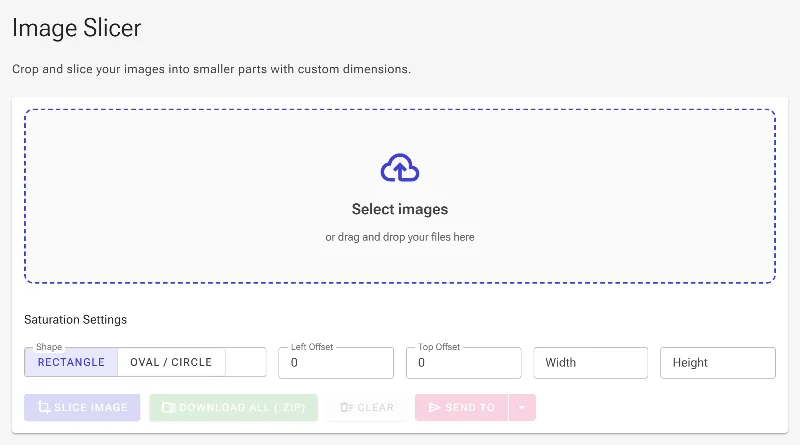
Begin by opening the Slice an Image tool. This utility features a dedicated control panel for configuring your crop coordinates and shape preferences. Because the processing pipeline runs client-side via WebAssembly, your source files are processed immediately in the browser, ensuring your data remains private.

Open the Image Slicer tool
The initial layout of the browser-based Image Slicing tool.

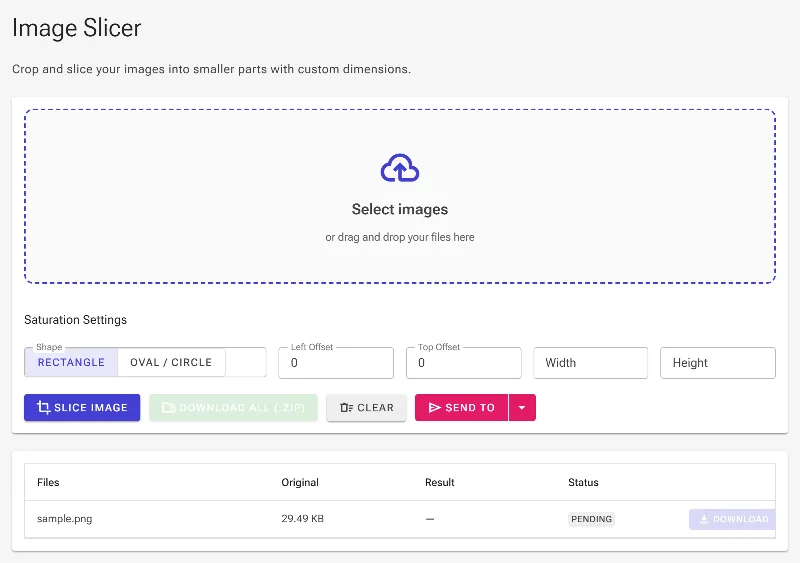
2Upload your source image

Click on the file upload zone or drag and drop your image file directly into the picker area. Once loaded, the image will register in the workspace, and the configuration inputs will unlock, allowing you to establish the cropping boundary parameters.

Upload your source image
Select or drag your image file to load it into the tool.

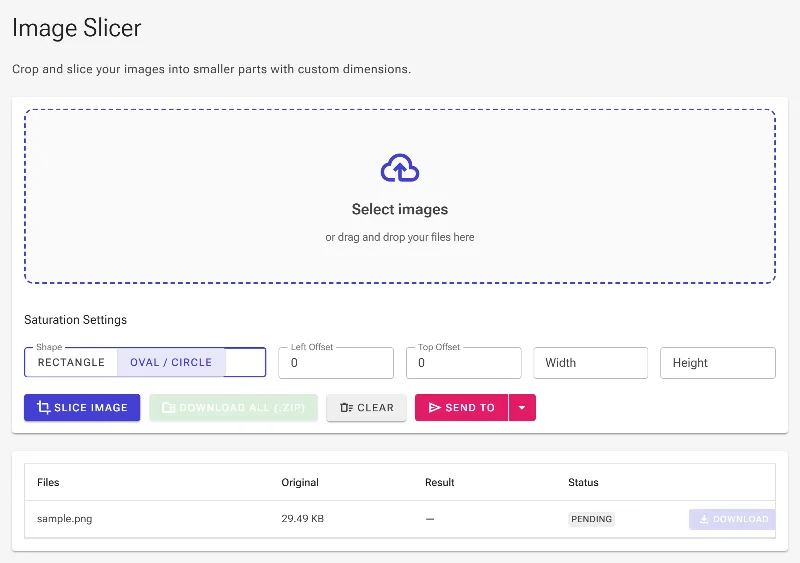
3Choose your slice shape

Locate the Shape selector control. You can pick between a standard Rectangle or an Oval shape. Selecting the Oval shape tells the underlying pipeline to apply an anti-aliased oval mask, automatically switching the output encoding format to PNG with 32-bit RGBA transparency to support transparent corners around the curved crop boundary.

Choose your slice shape
Switch the shape selector to crop your image as an Oval.

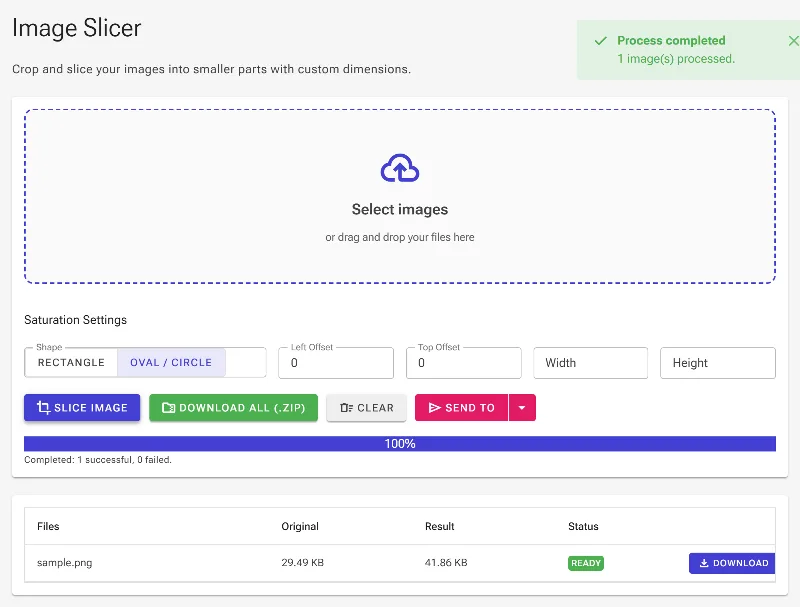
4Process and download the sliced image

Click the primary Slice action button to execute the operation. The processed thumbnail will immediately render in the image grid below showing the exact pixel dimensions. From here, you can download your crop directly, export it to a ZIP archive, or utilize the 'Send To' menu to re-slice the output image as a brand new input file.

Process and download the sliced image
Run the slice operation to view, export, or re-slice your result.