Free Image Upscaler: Enlarge Images Online Without Losing Quality
Select files
or drag and drop your images here
Instantly increase the resolution of your photos and graphics directly inside your web browser. Image Studio’s free, privacy-first image upscaler lets you enlarge images up to 450% without uploading your files to any external server. Get crisp, clear results with advanced pixel-smoothing technology that removes pixelation in seconds.
Features
Why It's Different
100% Private & Local
Your files never leave your computer. All image upscaling and smoothing processes run directly in your browser, ensuring absolute data security.
Custom Scaling Percentages
Break free from rigid presets. Choose your exact scaling ratio, from 150%, 200%, and 300% up to 450% for maximum size.
Smart Pixel Smoothing
Say goodbye to blurry, jagged edges. Our advanced smoothing algorithm eliminates pixelation to keep your graphics clean and sharp.
No Sign-Ups or Limits
Enjoy unlimited high-resolution upscaling with zero registration, no subscription fees, and absolutely no daily rate limits.
How It Works
How to Upscale an Image
1
Upload your image
Drag and drop your photo or click to select a file from your device.
2
Set your scale
Choose your desired scale percentage (from 150% up to 450%) to define your target dimensions.
3
Apply pixel smoothing
Enable the smart smoothing algorithm to automatically clean up compression artifacts and pixelation.
4
Download instantly
Click the download button to save your newly enlarged, high-resolution image directly to your device.
Use Cases
Use It for Anything
E-commerce & Product Photos
Elevate low-res product shots into high-definition listings for online storefronts and marketplaces.
Digital Art & Illustrations
Scale up AI-generated art, digital drawings, and vector renders into print-ready resolutions without losing detail.
Vintage Photo Restoration
Bring old, low-resolution family scans back to life by enlarging them for modern high-res screens and physical photo albums.
Enlarge Your Images Now
Experience professional-grade image enlargement with complete peace of mind. Drag your image into our local upscaler now to boost your resolution instantly.
FAQ
Frequently Asked Questions
How do you upscale an image without losing quality?
Our tool utilizes advanced pixel-smoothing and interpolation algorithms. Instead of simply stretching the pixels—which causes blurriness and jagged edges—the tool intelligently calculates and fills in the missing pixel data to maintain crisp, clean lines and smooth gradients.
Is this image upscaler safe to use for private or sensitive photos?
Yes, it is completely secure. Unlike traditional online converters, Image Studio operates entirely client-side. Your photos are processed locally within your web browser and are never uploaded, stored, or processed on external servers.
What scaling percentages are supported?
You have complete control over your output. You can configure custom scaling percentages to fit your exact needs, including standard increments like 150%, 200%, 300%, 400%, and up to 450% for maximum enlargement.
Are there any file size limits or hidden subscription costs?
No. Image Studio is completely free, with no premium tiers, no watermarks, and no registration required. Because the processing happens locally on your own machine, there are also no daily rate limits or queue wait times.
How to upscale an image without losing quality
Upscale your images directly in your browser with absolute privacy. This tool provides custom scaling percentages up to 1000% combined with four distinct pixel smoothing algorithms to prevent pixelation.
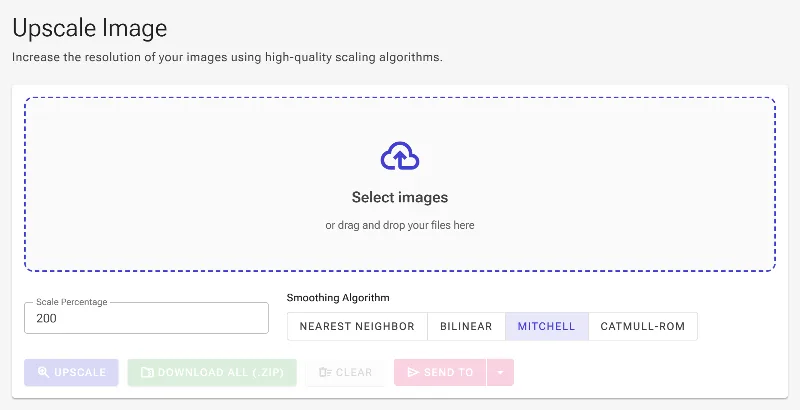
1Explore the image upscaling tool
Begin by opening the web-based image upscaling interface. This client-side tool processes your files directly within the browser using WebAssembly, ensuring your photos are never sent to external servers.
The initial empty state of the browser-based image upscaling tool.
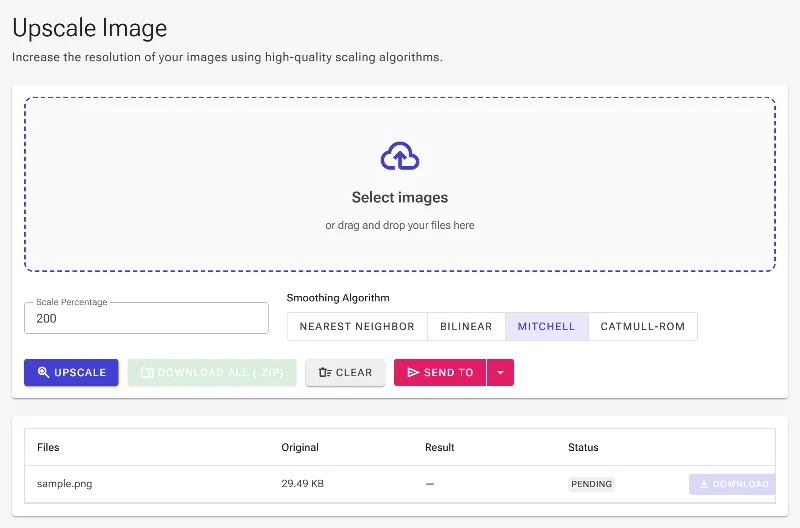
2Upload your source image
Click or drag your target files into the file picker area. Once loaded, you can process individual files or run batch updates using the global scaling and smoothing parameters configured in the next steps.
Uploading an image to begin the upscaling process.
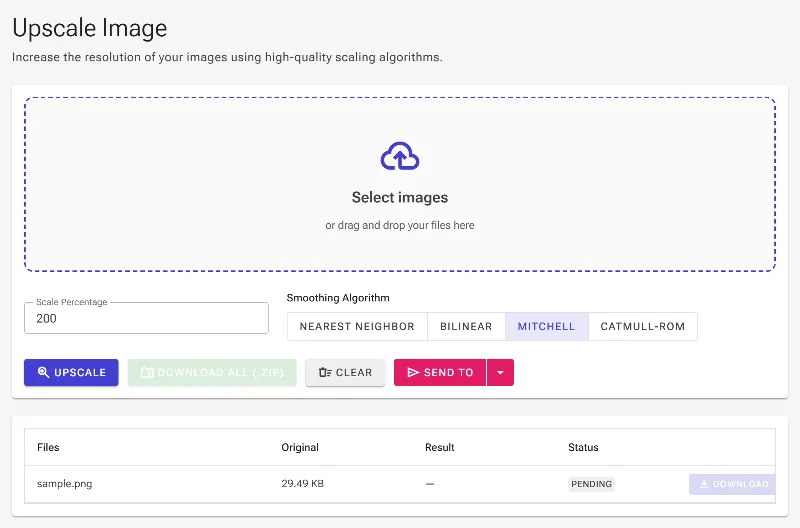
3Choose a pixel smoothing algorithm
Select an interpolation filter to handle upscaled pixels. Choose Nearest Neighbor for crisp pixel art, Bilinear for simple blending, Bicubic Mitchell to balance smooth gradients, or Bicubic Catmull-Rom for preserving sharp high-contrast edges.
Selecting the Mitchell bicubic smoothing mode for clean interpolation.
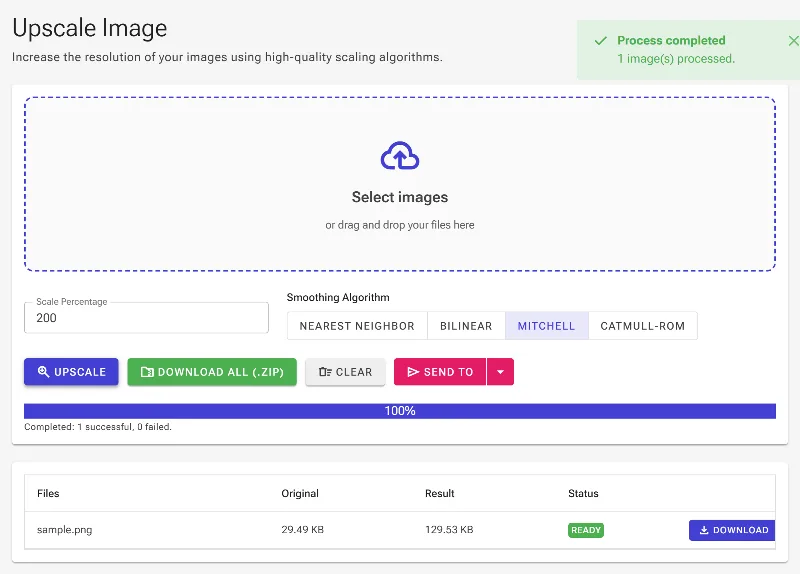
4Upscale and download your image
Click the upscale button to trigger the process. The tool generates your high-resolution output immediately, showing you the new dimensions in pixels and letting you save your upscaled file directly to your system.
Processing the image to view and download the upscaled result.