Upsize Your Images Instantly with Perfect Quality Control
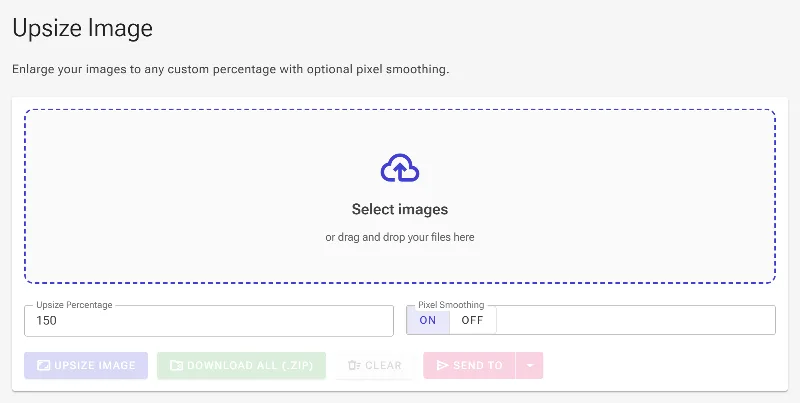
or drag and drop your images here
Make your photos, graphics, and designs larger without sacrificing quality using Image Studio's free, in-browser image upsizer. Because our tool runs 100% locally in your web browser, your files are never uploaded to a server, ensuring absolute privacy and instant results. Easily scale your images to any exact percentage and control pixel smoothing with a single click.
Why Image Studio is Different
100% Private & Local Processing
Your images never leave your device. All upscaling happens directly in your browser, keeping your sensitive data completely secure.
Precise Percentage Upsizing
Don't settle for rigid presets. Scale your images to the exact dimensions you need, whether it's 120%, 150%, 300%, or any custom percentage.
Advanced Pixel Smoothing Control
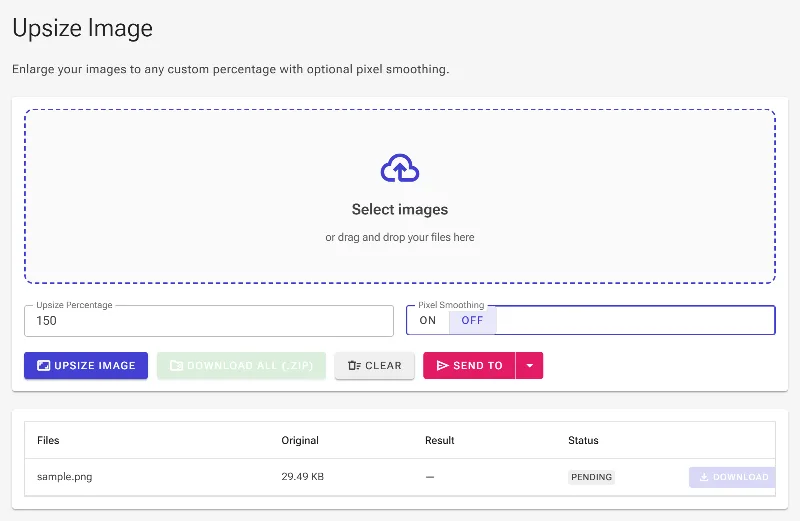
Toggle anti-aliasing on to blend pixels and reduce artifacts for smooth photos, or turn it off to keep crisp, clean edges for pixel art and vector graphics.
Zero Limits, Zero Fees
No sign-ups, no subscriptions, and no daily upload caps. Enjoy unlimited, high-resolution image resizing completely free of charge.
How to Upsize an Image by Percentage
Upload
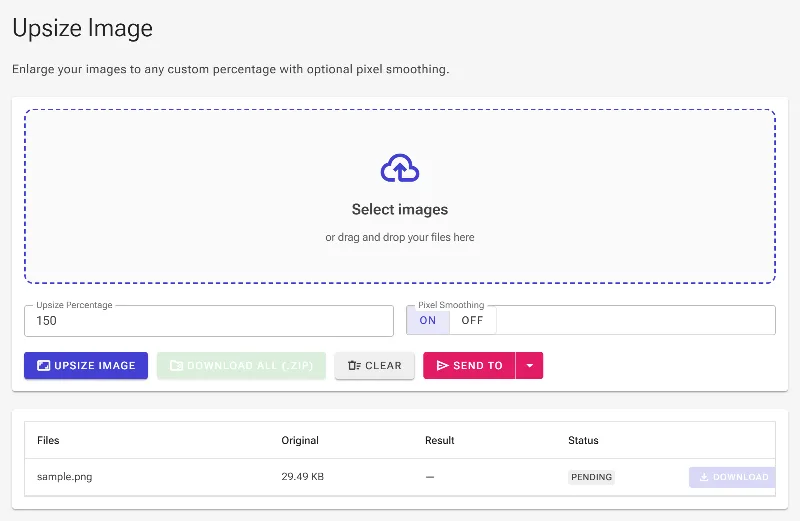
Drag and drop your image into the secure canvas, or click to select a file from your device.
Set Percentage
Enter your desired enlargement percentage (e.g., 150% or 300%) in the scale input box.
Toggle Smoothing
Toggle the "Pixel Smoothing" option on for smooth photos, or off to keep sharp edges for pixel art and graphics.
Download
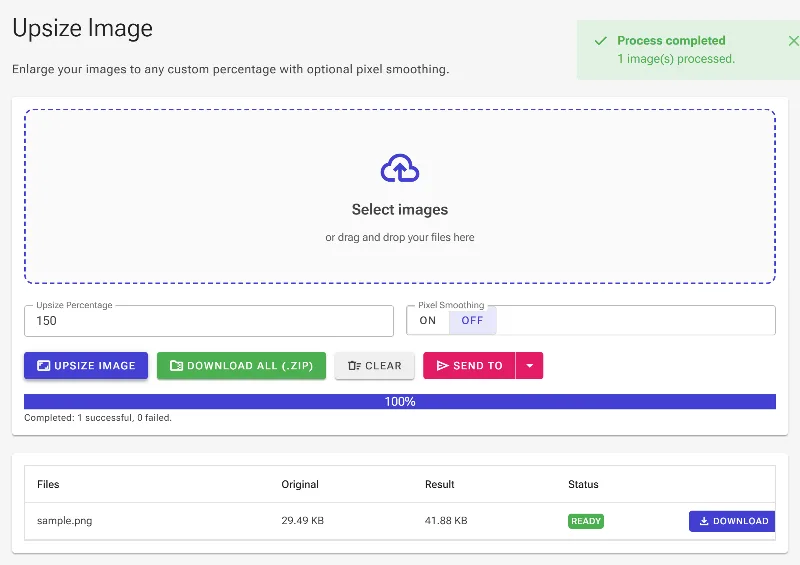
Click "Download" to instantly save your high-resolution upsized image to your device.
Use It for Anything
E-commerce & Product Photos
Enlarge product shots to meet marketplace resolution requirements while maintaining sharp details and clear textures.
Digital Art & Pixel Art
Upscale digital illustrations smoothly, or disable smoothing to keep retro pixel art perfectly crisp and sharp at any scale.
Print & Publishing Prep
Increase the resolution of low-res web images to make them suitable for high-quality printing, flyers, presentations, and posters.
Enlarge Your Images Now
Take full control over your image resizing without compromising your privacy or your wallet. Drag your first image in now to experience fast, high-quality, local image upsizing.
Frequently Asked Questions
How does this image upsizer preserve image quality?
Our tool utilizes advanced browser-based rendering algorithms. By enabling our pixel smoothing toggle, the tool intelligently blends pixels to reduce blocky artifacts in photos. Alternatively, disabling smoothing preserves the exact layout of pixels, which is ideal for keeping retro designs and pixel art sharp.
Is it safe to upsize sensitive or private photos here?
Absolutely. Unlike other online image enlargers, Image Studio processes your files locally using your browser's processing power. Your images are never uploaded to an external server, meaning your private data remains 100% secure on your device.
What file formats are supported for image resizing?
You can import and upsize all major web image formats, including PNG, JPG, JPEG, WebP, and BMP, and export them directly to your device in seconds.
Are there any limits on how many images I can enlarge?
No. Since the processing runs on your own device rather than our servers, we have no rate limits, no daily caps, and no premium paywalls. Scale as many images as you want, whenever you want.