Free Image Resizer & Scaler — Private, Unlimited, No Upload
or drag and drop your images here
Resize or scale any image online for free, with no limits and no signup. Enlarge a small photo, shrink a large one, or set exact dimensions — by pixels, percentage, centimeters, or inches — and download a sharp result in seconds. Everything happens inside your browser, so your images never get uploaded to a server and stay completely private.
Why This Image Resizer Is Different
A lot of "free" resizers upload your photos to their servers, cap you at a handful of files, reserve batch processing or privacy for a paid plan, or wrap the whole thing in ads. This one doesn't.
Your images never leave your browser. Resizing runs locally on your own device. Nothing is uploaded, stored, or "kept for 24 hours" — your photos stay on your computer or phone the entire time. That makes it safe for ID photos, client work, product shots, and anything you'd rather not hand to a server.
No limits and no signup. Resize as many images as you want, as large as you want, as often as you want. There's no file-count cap, no megapixel ceiling, no daily quota, and no account to create. Batch-resize a whole folder in one pass.
Scale up or down without wrecking quality. High-quality resampling keeps edges crisp and colors accurate whether you're shrinking a 6000 px camera photo for the web or enlarging a small graphic for print — far better than a quick browser stretch.
Resize your way. Set an exact width and height in pixels, scale by percentage, or work in centimeters or inches with a DPI value for print. Lock the aspect ratio to avoid distortion, or unlock it for a precise fit.
Completely free, no watermark. Open the page and start. Your resized image downloads clean, with nothing stamped across it.
No software, no plugin, no account — it works in any browser on Windows, macOS, Linux, Android, and iOS.
Resize for Anything
A correctly sized image loads faster, fits perfectly, and looks professional everywhere:
- Websites & SEO — shrink heavy camera photos to web-friendly dimensions so pages load faster and Core Web Vitals improve.
- Social media — hit the exact size for Instagram, Facebook, X/Twitter, LinkedIn, YouTube, and Pinterest posts, stories, covers, and thumbnails.
- E-commerce — standardize product photos to consistent dimensions for Amazon, Etsy, eBay, and Shopify listings.
- Email & messaging — make large photos small enough to send quickly without filling an inbox.
- Print — set physical size in cm or inches at the right DPI for flyers, posters, and photo prints.
- Documents & forms — meet exact pixel or file requirements for passport photos, applications, and uploads.
Scale Up and Scale Down
Resizing isn't only about making images smaller. Scale down to cut file size and fit tighter layouts, or scale up to enlarge a small logo or graphic for a bigger canvas. High-quality resampling preserves as much sharpness and detail as possible in both directions, so your result looks intentional rather than blurry or pixelated. Because you control width, height, and aspect ratio precisely, you get exactly the dimensions you need — no guesswork, no distortion.
Step-by-Step Tutorial: Resizing Images (With Screenshots)
Learn how to resize your images in a few simple steps directly in your browser. Your images are never uploaded to a server.
1Upload your images
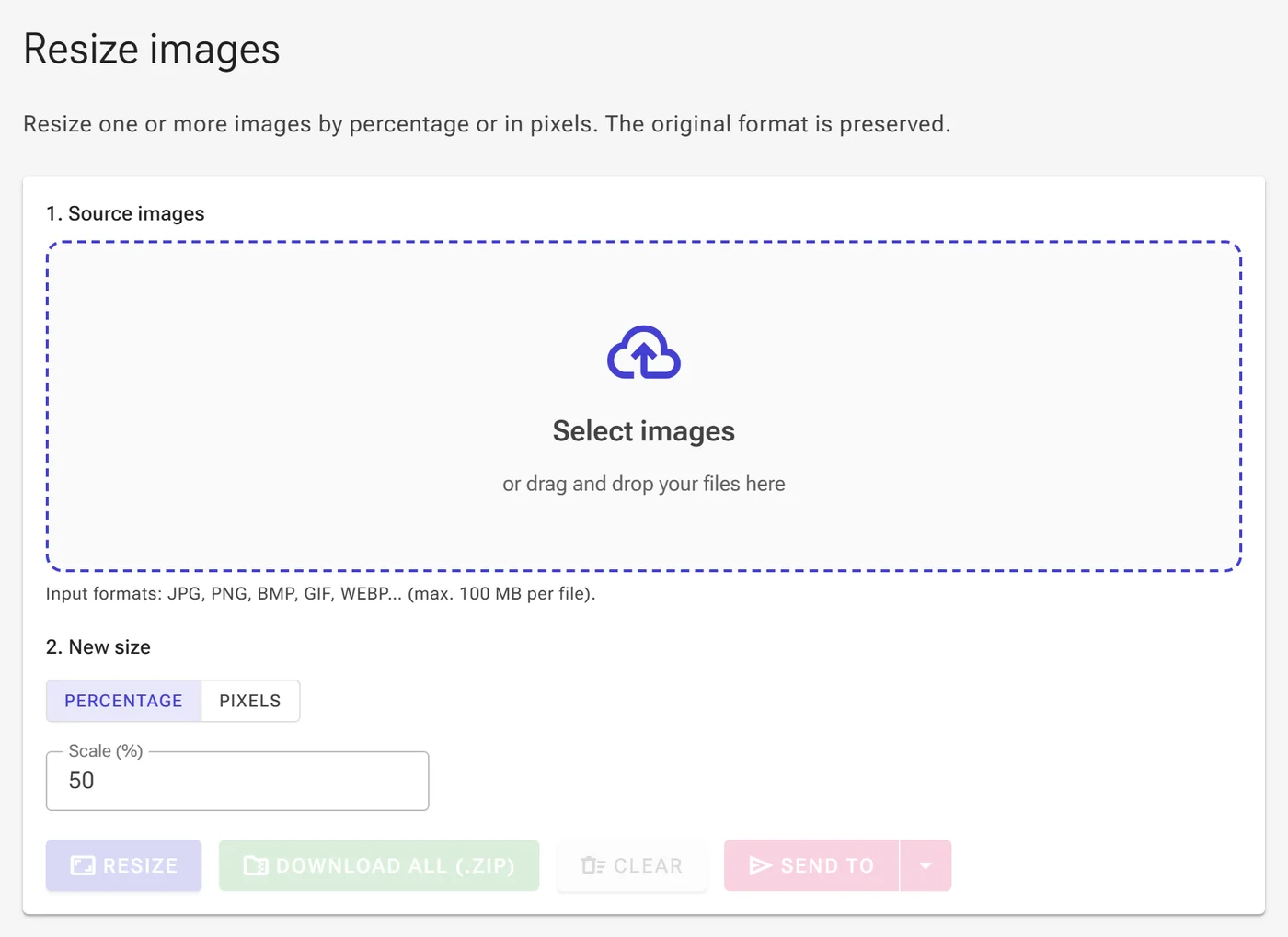
Click the Select images button or drag and drop your files directly into the drop zone. You can select multiple images to process them all at once.
2Choose Resize Mode & Scale
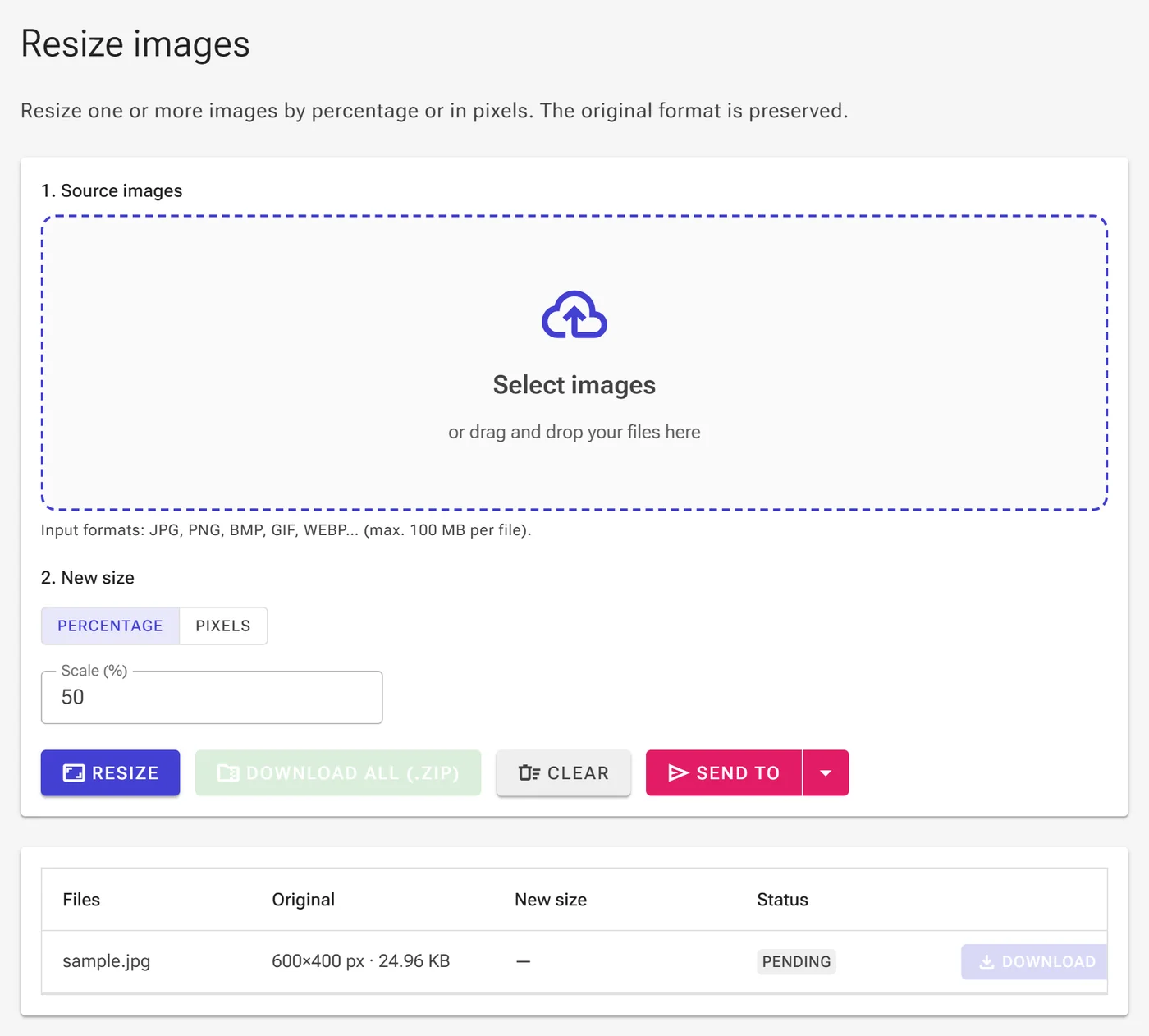
By default, the Percentage mode is selected. This allows you to scale your images from 1% up to 1000% of their original size proportionally.
3Define Exact Dimensions & Units
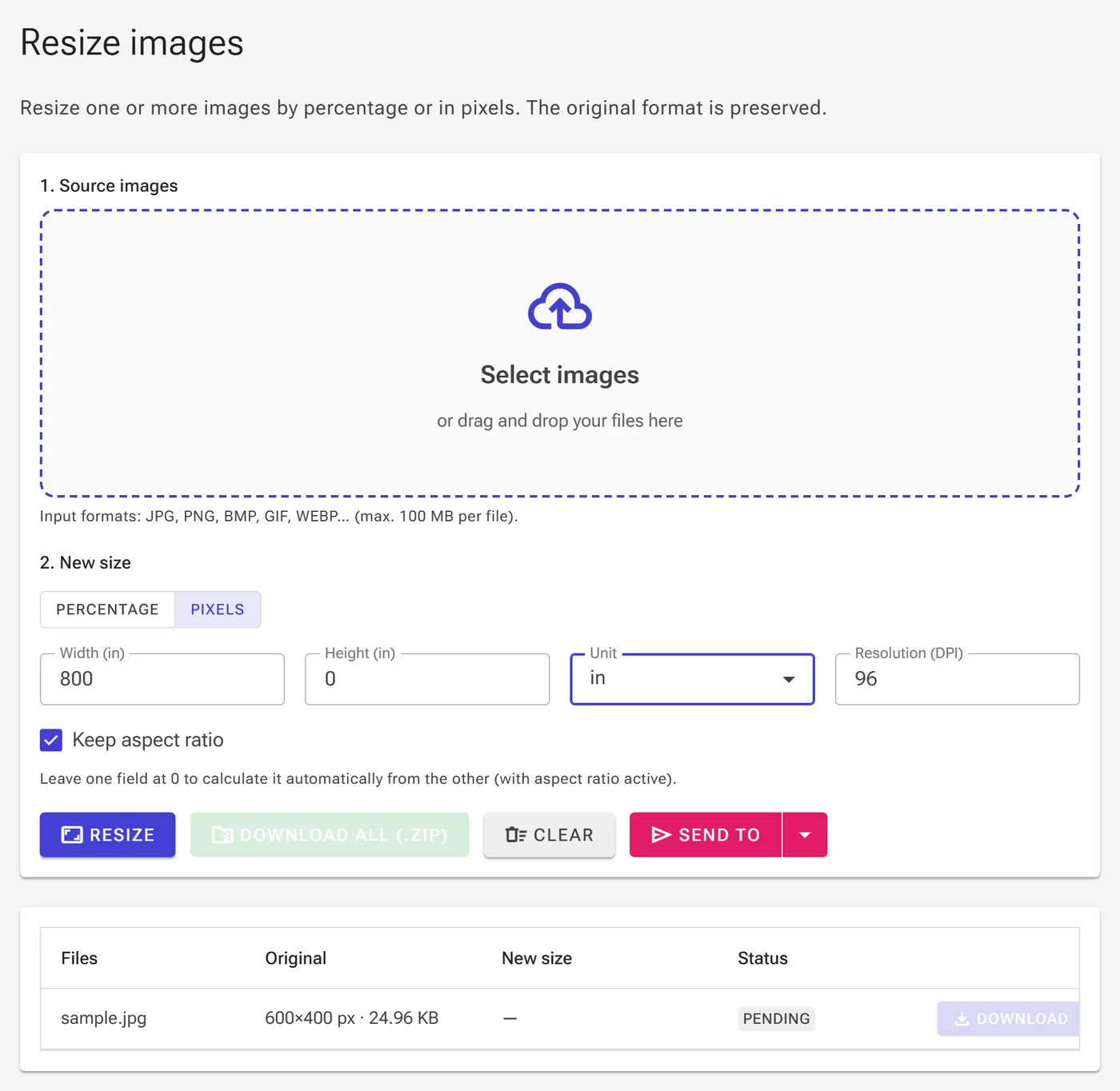
Switch to the Pixels mode to enter exact width and height values. You can change the Unit dropdown to px (pixels), cm (centimeters), or in (inches). When choosing centimeters or inches, you can also specify the print resolution in Resolution (DPI) to calculate exact pixel counts, and check Keep aspect ratio to maintain original proportions.
4Process and Download
Click the Resize button to process your images. Once done, you can click Download next to each file, download them all as a ZIP archive using Download all (.zip), send them to other tools with Send to, or clear the workspace using Clear.
